


Before you start
- A spend export from each ad platform used for this client during the billing period, pulled at the account level. Not the campaign level. Most agency invoices bill a single media line per platform, sometimes per account, never per campaign, so a campaign-level export has to be summarized to that level before it is useful here. Pull that summary from the platform's own reporting interface rather than expecting it to be built during reconciliation.
- The client invoice for that same billing period, ideally itemized by platform or media line rather than a single lump sum.
- The agency's fee or markup terms for this client, from the signed SOW: a percentage of spend, a flat retainer, or a minimum spend commitment. Without this, there is no way to know which part of any difference is the fee working as intended and which part is a real spend discrepancy.
- A common currency to compare in, if any platform spend was incurred in a currency different from the one the client is invoiced in. Reconcile does not convert currency. Spend has to be converted to the invoice's currency, using the FX rate applicable at the time it was spent, before it is uploaded.
Step 1: Pull Platform Spend at the Account Level and the Invoice for the Same Period
Export each platform's spend report filtered to the billing period, at the account level, not campaign level.
Check the billing cycle against the invoice period before treating anything as final. Google Ads bills on a spending threshold or a fixed monthly date, not on delivery date. A client billed on a June 1 to June 30 cycle can have spend that Google's own invoice attributes partly to July, because the threshold was crossed a few days into the new month. If the platform export is filtered by "invoice date" instead of "delivery date," spend that was actually delivered in June will show up in July's export instead, and the two files will disagree for a reason that has nothing to do with an actual billing error. Filter by delivery or spend date, not the platform's own invoice date, so the export lines up with the period the client was billed for.
Step 2: Combine the Platform Exports Into One Spend File, Then Upload the Pair
A reconciliation compares one Source file against one Comparison file. The invoice is one file; the spend side needs to be one file too. Stack the account-level platform exports into a single spend file, one row per account per period, with a spend column, an account ID column, and a platform column. This takes minutes, because the exports are already at account level, a handful of rows per platform, not thousands. Alternatively, if the invoice is itemized per platform, run one reconciliation per platform: Google's export against the Google line items, Meta's against the Meta line items. Both routes work; the combined file keeps everything in one report.
Start a new reconciliation. Put the combined spend file in the Source file slot, the main file to check, and the client invoice in the Comparison file slot, the file to match against, then click Start Reconciliation.
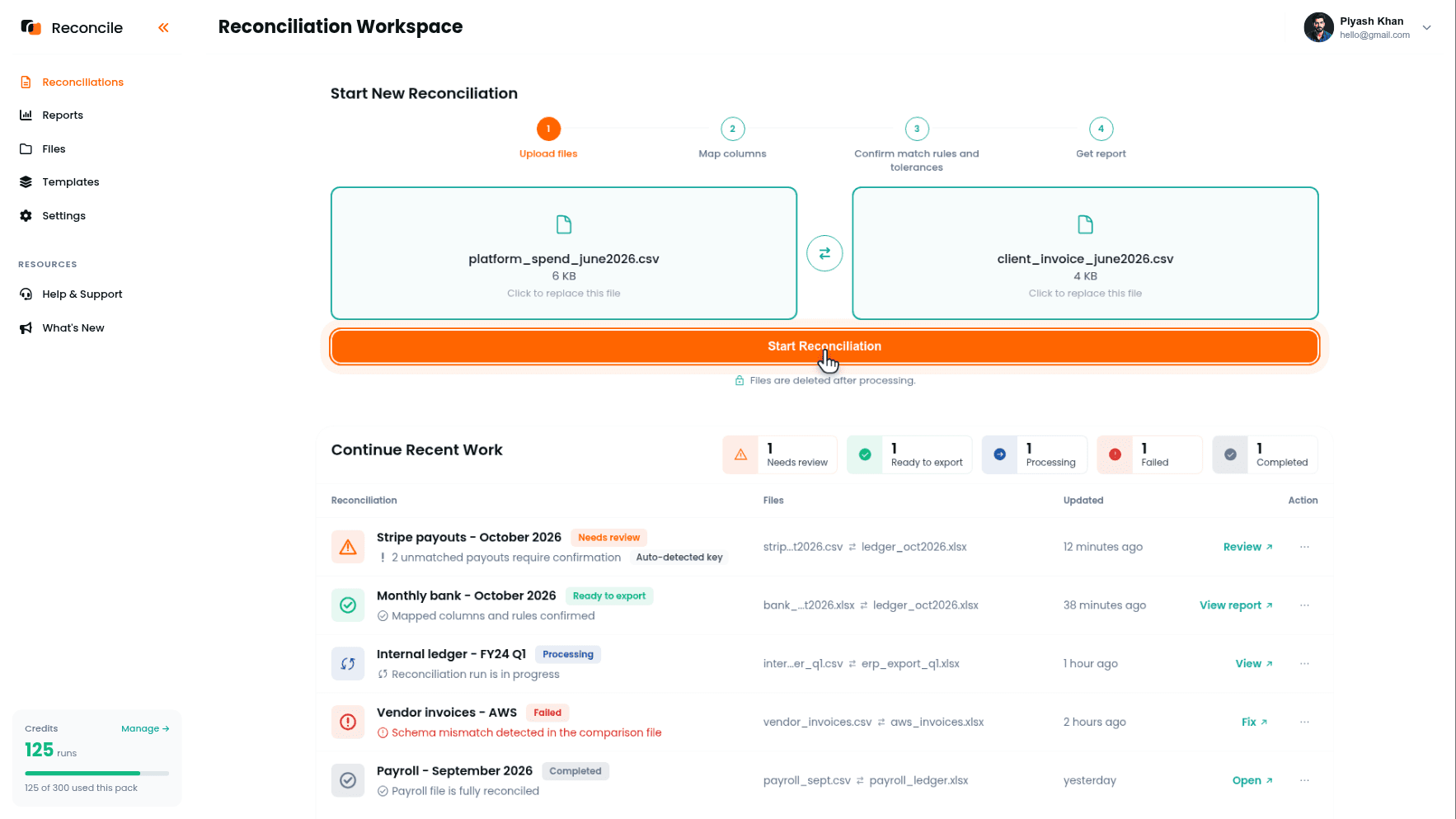
Neither file needs matching column names or formats before upload. Google Ads calls its spend column Cost. Meta calls it Amount Spent. The invoice might call it Media Spend or plain Amount. The columns get paired up in the next step, exactly as they are.
Step 3: Map the Spend Columns to the Invoice Columns
On the Map columns step, tick the spend column and the account identifier in the Select columns to map grid, confirm them in the Preview selected columns table, and pair each with its invoice equivalent under Map columns between files: the spend column to the invoice's media spend amount, the account ID to the invoice's account or line item reference.
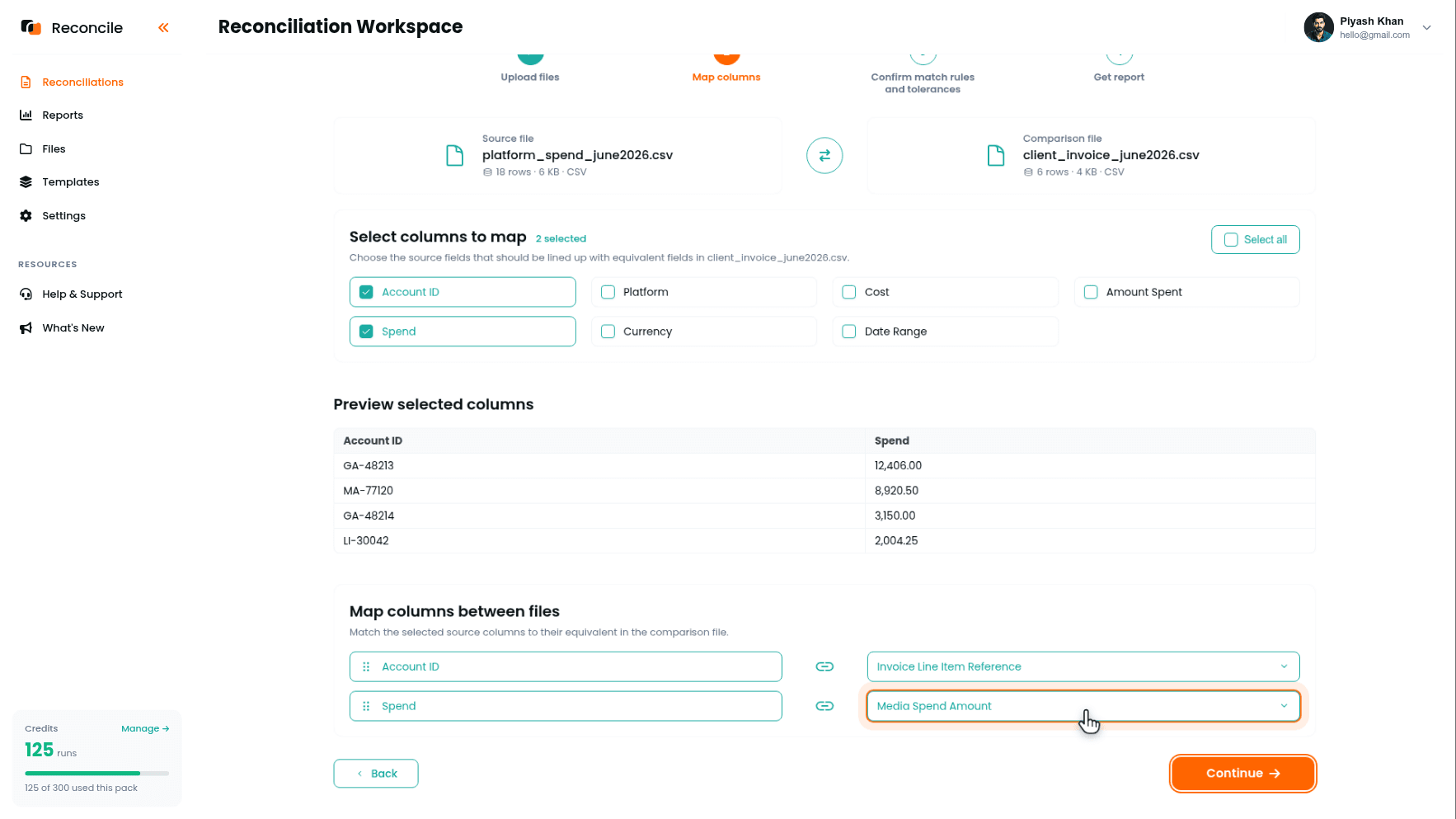
If the invoice bundles every platform into a single Media Spend line instead of itemizing by account, there is nothing granular to map against on the invoice side. In that case, sum the spend file to a single total per period before upload, since Reconcile compares the rows it is given and does not aggregate rows for you.
Step 4: Confirm the Matching Column
Ad platforms have no concept of an invoice reference, so the matching column here is not a transaction ID the way it would be for a bank statement or a payment processor payout. The usable matching column is the account identifier: confirm it when Reconcile suggests it under We suggest matching on:, or select it under Or choose a different column, and check the pairing in Preview match key values.
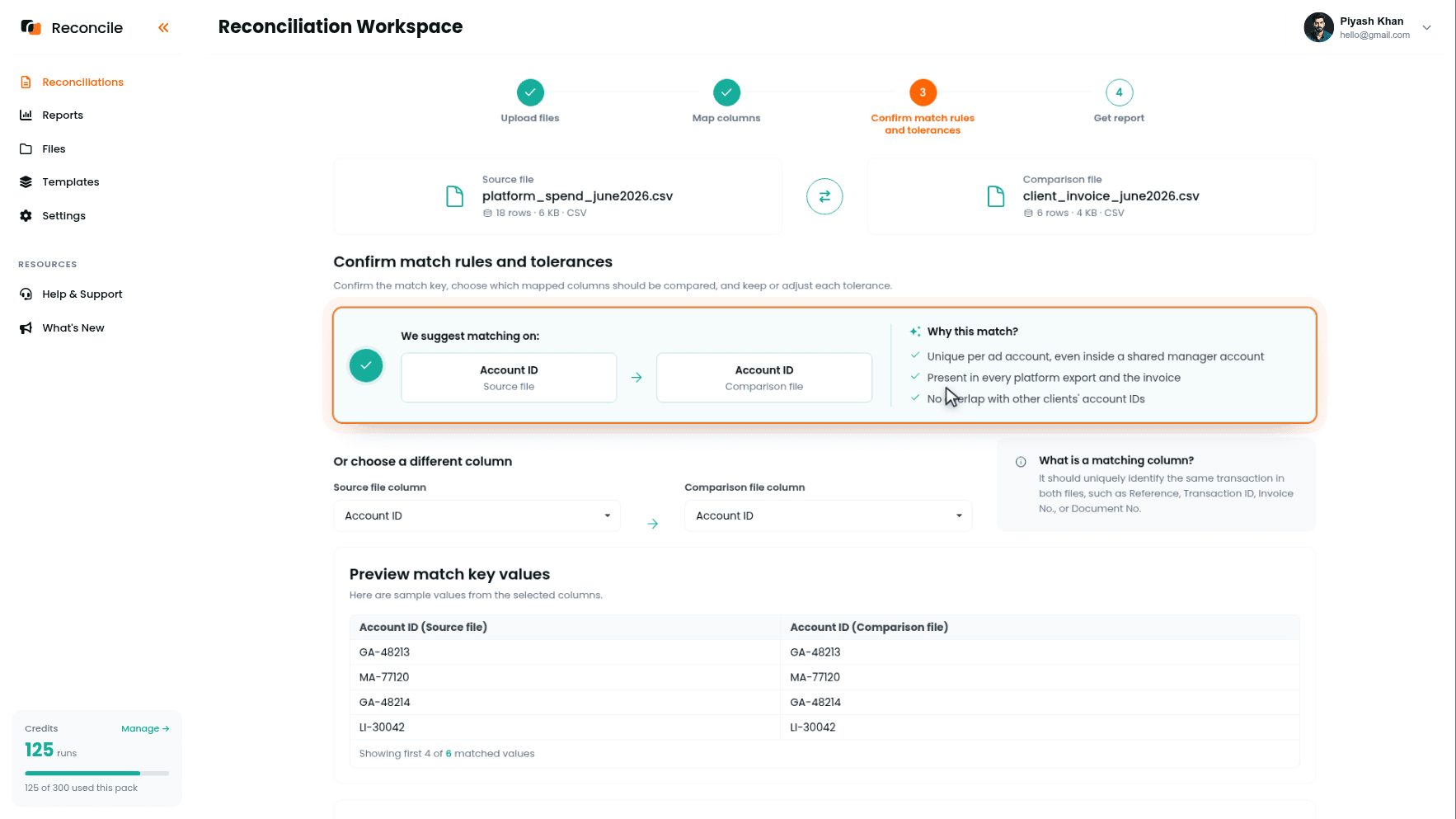
Use the account ID, not the account name, if the client's accounts sit inside an agency-wide manager account alongside other clients' accounts. Account names are set by whoever created the account and repeat across clients, "Search Campaigns" and "Brand Awareness" show up under half the accounts in a typical MCC. An account ID is unique. An account name is not, and matching on it risks pairing one client's spend against another client's invoice line silently. If an ID does slip in twice, the report's Duplicates tab flags it rather than letting the rows pair silently.
Step 5: Set the Spend Tolerance
The spend column is compared against the invoice's media spend line item, not against the invoice total. The invoice total includes the management fee. Spend never will, since the fee is added on top, not folded into the platform's own reported cost. Comparing spend against the full invoice amount produces a mismatch on every single row, equal to the fee, which tells you nothing about whether the spend figure itself is correct.
Under Confirm comparison rules and tolerances, the spend pair shows as a numeric field with an adjustable tolerance. Size it based on how the currency conversion was done, if one was needed. A spend figure converted using a daily FX rate and an invoice figure converted using a monthly average rate will differ by more than a rounding error, through no fault in either number: on a $10,000 media line, that legitimate FX variance is on the order of $100, so set the tolerance there. If both figures are already in the same currency and no conversion was involved, tighten the tolerance to a few cents, enough for rounding and nothing more.
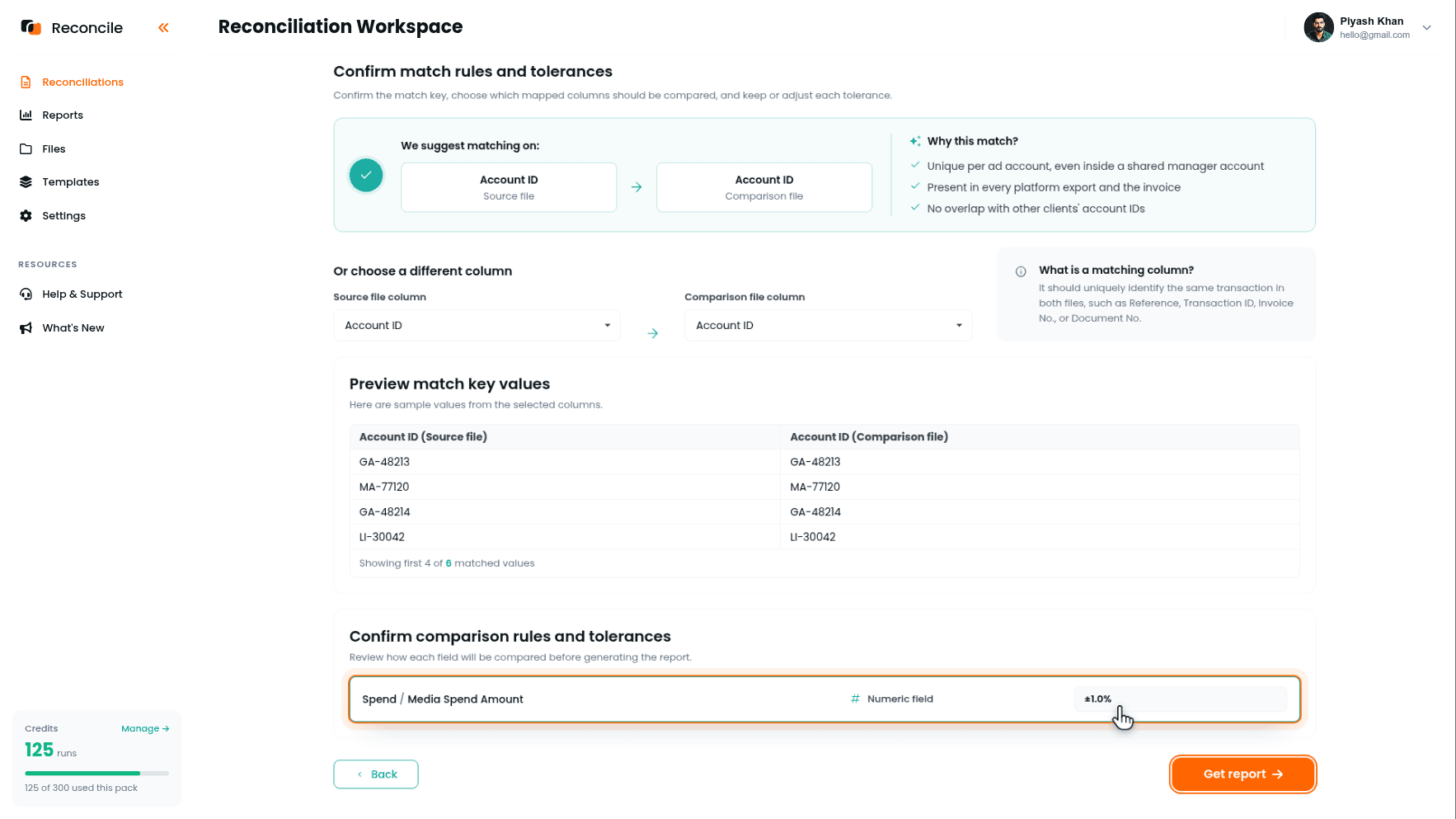
Click Get report.
Step 6: Read the Report
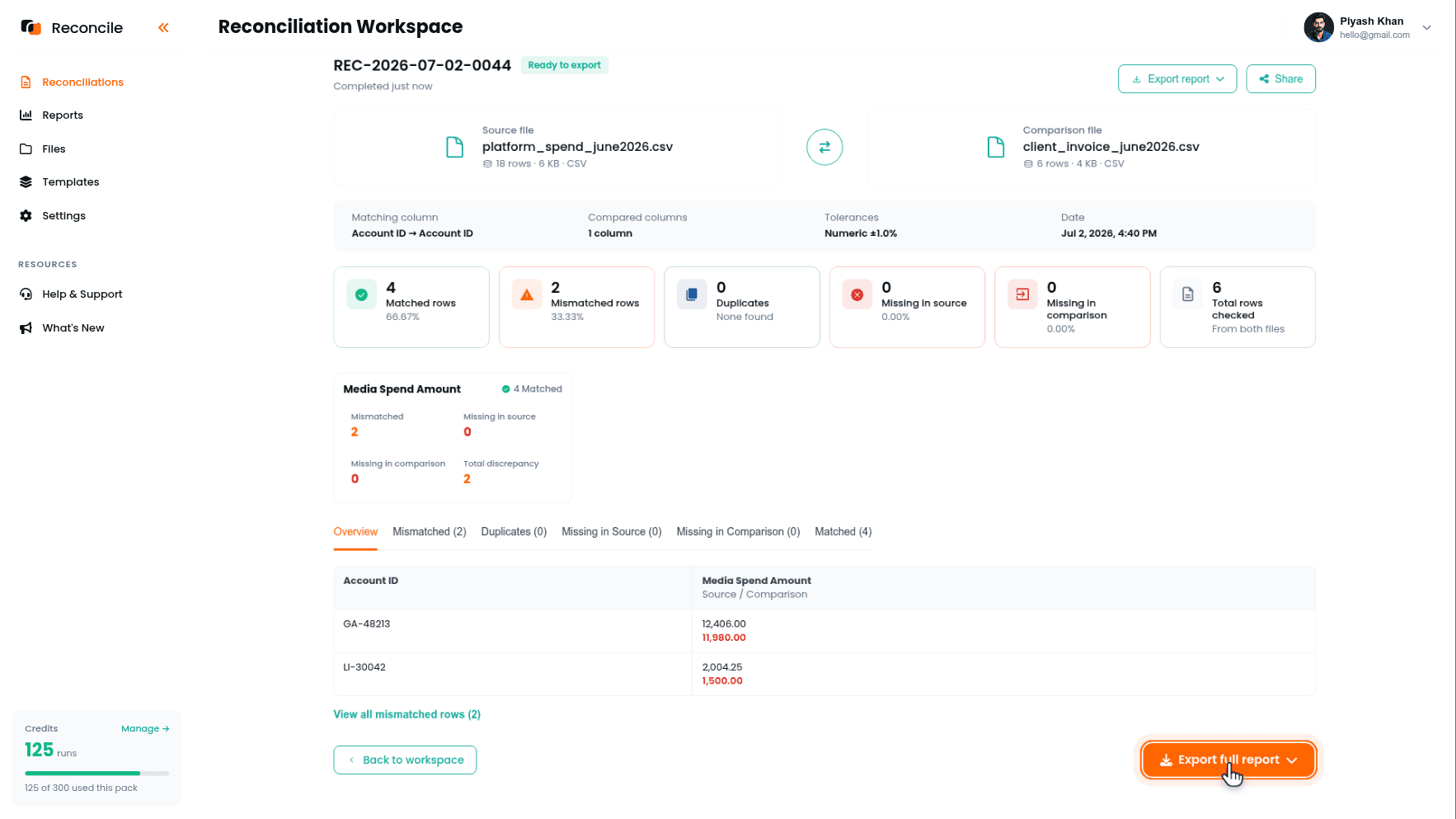
The report sorts every account and every invoice line into Matched rows, Mismatched rows, Duplicates, Missing in source, and Missing in comparison. Matched rows confirm the spend figure behind an invoice line is the spend that actually happened. Missing in comparison rows are accounts that were spent against but never billed, worth checking against the invoice for a missing line item. Missing in source rows mean the client was billed for an account that shows no matching platform spend in this period, worth checking whether that account belongs to a different billing cycle or a different client entirely.
Step 7: Explain Each Mismatch
A mismatched row at this stage usually comes from one of a few sources:
- A minimum spend commitment. Some contracts bill a guaranteed minimum regardless of what was actually delivered. A lower actual spend against a higher invoiced amount here is expected, not an error, and should be recorded as explained rather than investigated further.
- A promotional credit. Google Ads and Meta both occasionally apply a coupon or credit that reduces net spend on the platform side without any corresponding adjustment on the client invoice, since the credit belongs to the agency, not the client.
- A missing sub-account. One account under a shared manager account got left out of the consolidated spend file, understating total spend against what the invoice reflects. This one also shows up as a Missing in source row for that account.
- An underdelivery. Ads got disapproved or a campaign got paused mid-cycle, so actual spend came in under the budget the invoice was built against.
The Mismatched tab shows the platform figure and the invoice figure side by side with the difference highlighted, so each row's gap is a number you can take straight to the SOW or the platform's billing history.
Step 8: Export the Report
Click Export full report. This produces a PDF summary and an Excel workbook with every row sorted into its category. Record the explanation for each mismatched and missing row against its row in the workbook: explained, needs correction, or still open. A minimum spend commitment explained once for a client does not need to be re-investigated every billing cycle it recurs in the same form.
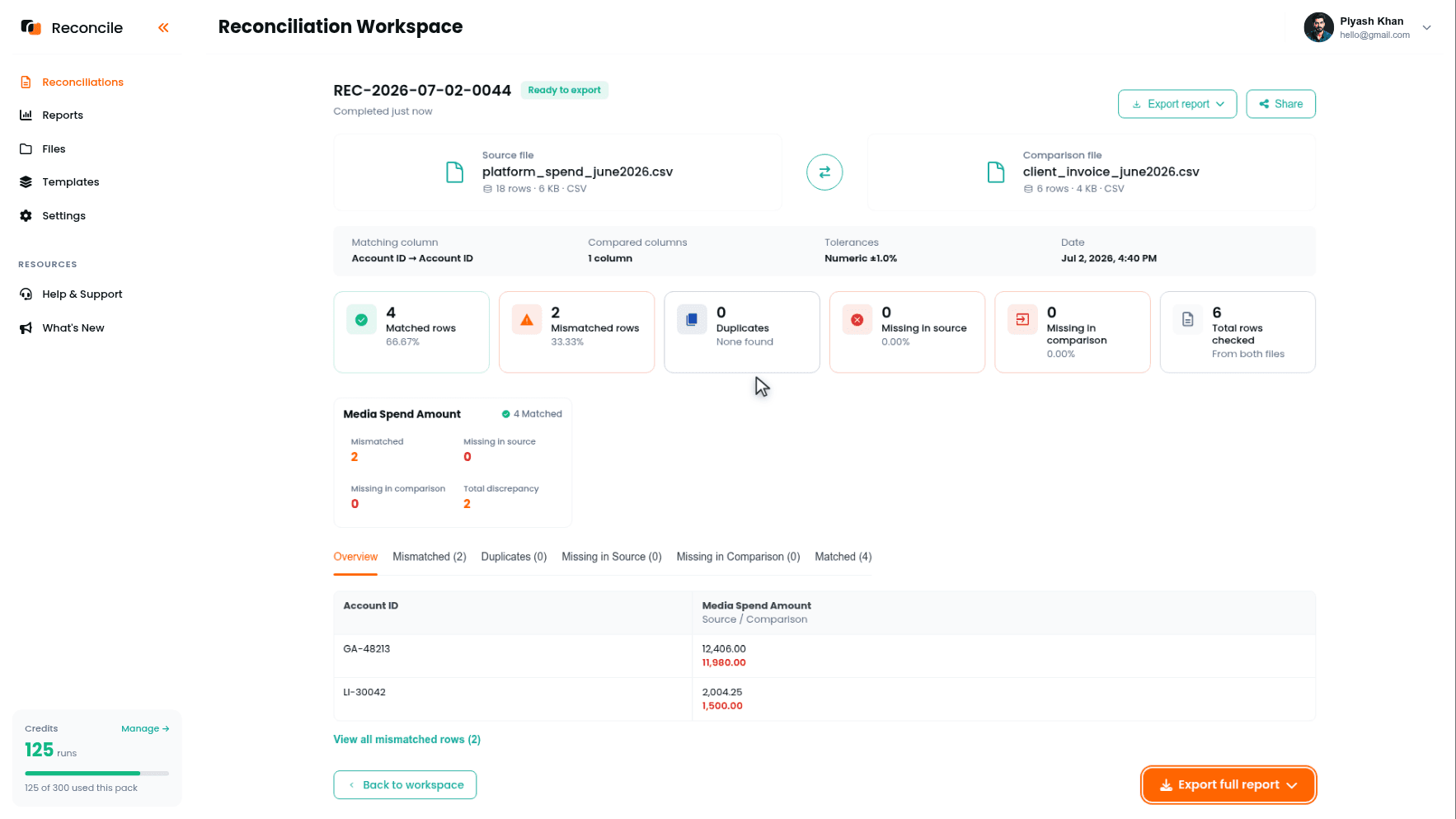
The PDF is what gets attached to the internal billing packet or handed to the account manager before an invoice goes out or gets disputed. The annotated workbook behind it holds the row-level detail: matched rows, mismatches, and missing lines, each with its explanation attached.
Key takeaways
- Compare spend against the invoice's media line item, not the invoice total. The management fee is a deliberate addition on top of spend, not a discrepancy to resolve, and comparing against the full invoice total will manufacture a false gap on every row.
- Pull platform exports at the account level, filtered by delivery date, not invoice date. Threshold billing cycles attribute spend to a different period than when it was actually delivered, and that mismatch looks like a billing error when it is really a date filter problem.
- One reconciliation is one Source file against one Comparison file. Stack the platform exports into a single spend file, or run one pass per platform against an itemized invoice.
- Match on account ID, not account name. Account names repeat across clients inside a shared manager account; account IDs do not, and the Duplicates tab catches any that slip in twice.
- If spend and invoice currencies differ, convert spend to the invoice currency before uploading, and size the numeric tolerance around the FX conversion method used: a daily rate against a monthly average rate produces a real but explainable gap.
- Most mismatches trace to one of four causes: a minimum spend commitment, a promotional credit, a missing sub-account, or a mid-cycle underdelivery. Each has a distinct explanation and a distinct fix, and the exported report with those explanations attached is what goes into the billing packet.



