


Before you start
- A QuickBooks export of the bank account's activity for the period, pulled as an Account QuickReport, a Register report, or a Transaction List by Date filtered to that one bank account, exported to CSV or Excel.
- A bank statement covering the same account and the same period, exported as CSV or Excel from the bank's portal. If the bank offers a single signed Amount column as an export option, choose it, so the amount columns on both sides carry the same figures the same way.
- A way to identify the same transaction on both sides. Check number covers checks, QuickBooks's Num column against the bank's check number field. For an account dominated by other activity, debit card charges, ACH transfers, wires, deposits, the amount itself is the identifier, with date compared under a tolerance; how that works is covered in Step 3.
Step 1: Export the QuickBooks Register and the Bank Statement for the Same Account and Period
Pull the QuickBooks report filtered to the specific bank account, not a combined report across accounts, and set the date range to match the statement period exactly. In QuickBooks Online this is usually the Account QuickReport or Transaction List by Date, filtered by account; in Desktop it is the register export for that account. Export to CSV or Excel.
Pull the bank statement for the same account and the same date range directly from the bank's portal.
Check the date range on both files before moving on. QuickBooks reports default to the company's fiscal period in some setups, not the calendar month, and a bank statement that runs March 1 through 31 against a QuickBooks export running a fiscal period from the 26th to the 25th will fill the Missing categories on both sides purely from the range mismatch, not from any actual error.
Step 2: Upload Both Files and Map the Columns
Start a new reconciliation. Put the bank statement in the Source file slot, the main file to check, the bank's record is the one being verified against, and the QuickBooks export in the Comparison file slot. Click Start Reconciliation. Column headers do not need to match, and the QuickBooks export does not need its Balance column removed or its Type and Memo columns cleaned up before uploading.
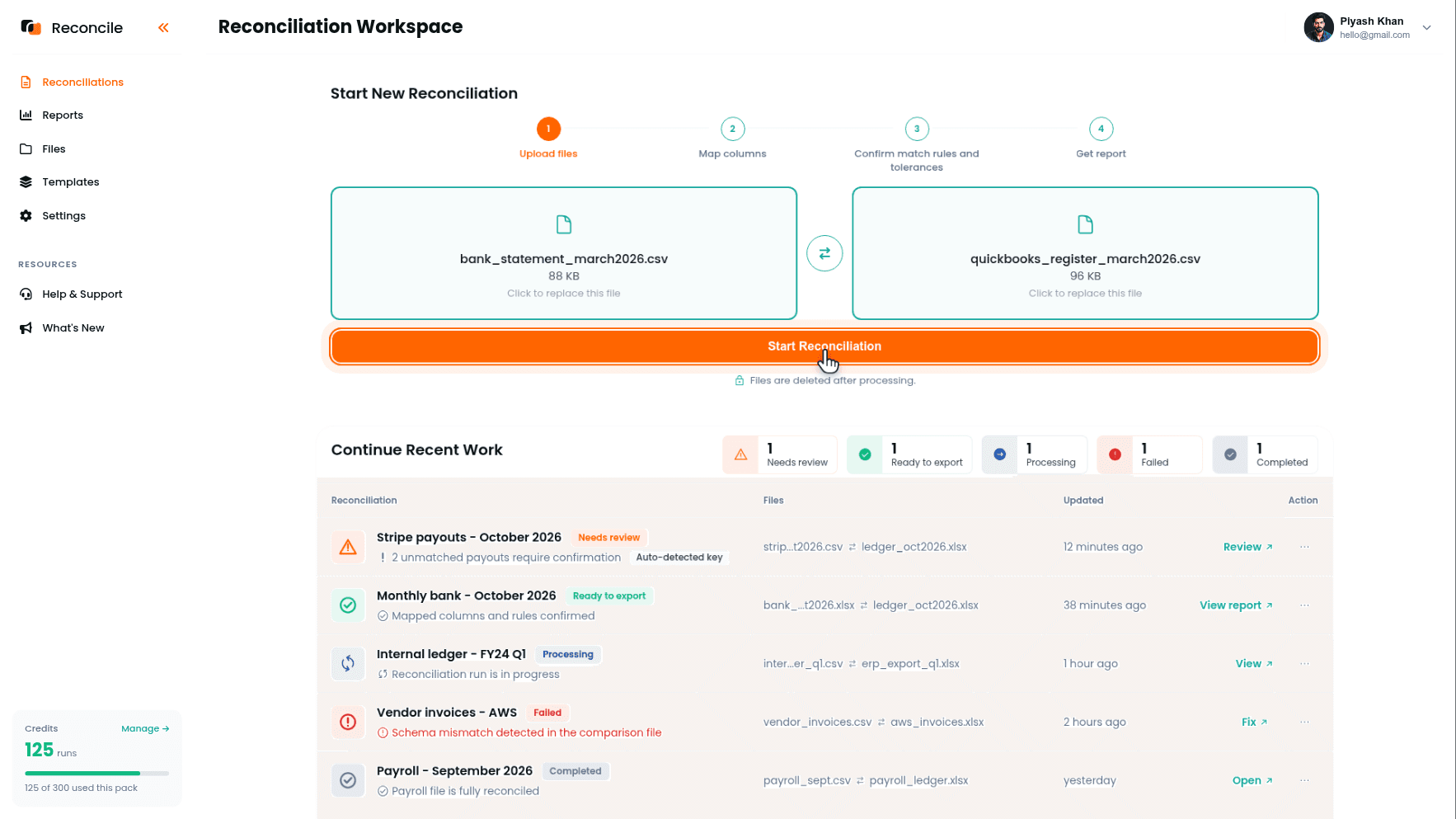
On the Map columns step, tick the columns that matter in the Select columns to map grid: the bank's date, amount, and check number field where the statement carries one. Confirm each in the Preview selected columns table, then pair them under Map columns between files: the bank's transaction date to QuickBooks's Date, the bank's amount to QuickBooks's Amount, the bank's check number to QuickBooks's Num.
Leave the Balance column unticked on both sides. It is a running total, and if a single upstream transaction is missing or wrong, every balance figure after it shifts, turning one real error into what looks like dozens of mismatches down the length of the file. Leave Memo, Description, and Type unticked as well: QuickBooks's Memo field is whatever the person entering the transaction typed, and the bank's description is whatever the bank's own processing system generated. They describe the same transaction in different words and will not agree even when nothing is wrong.
Step 3: Confirm the Matching Column
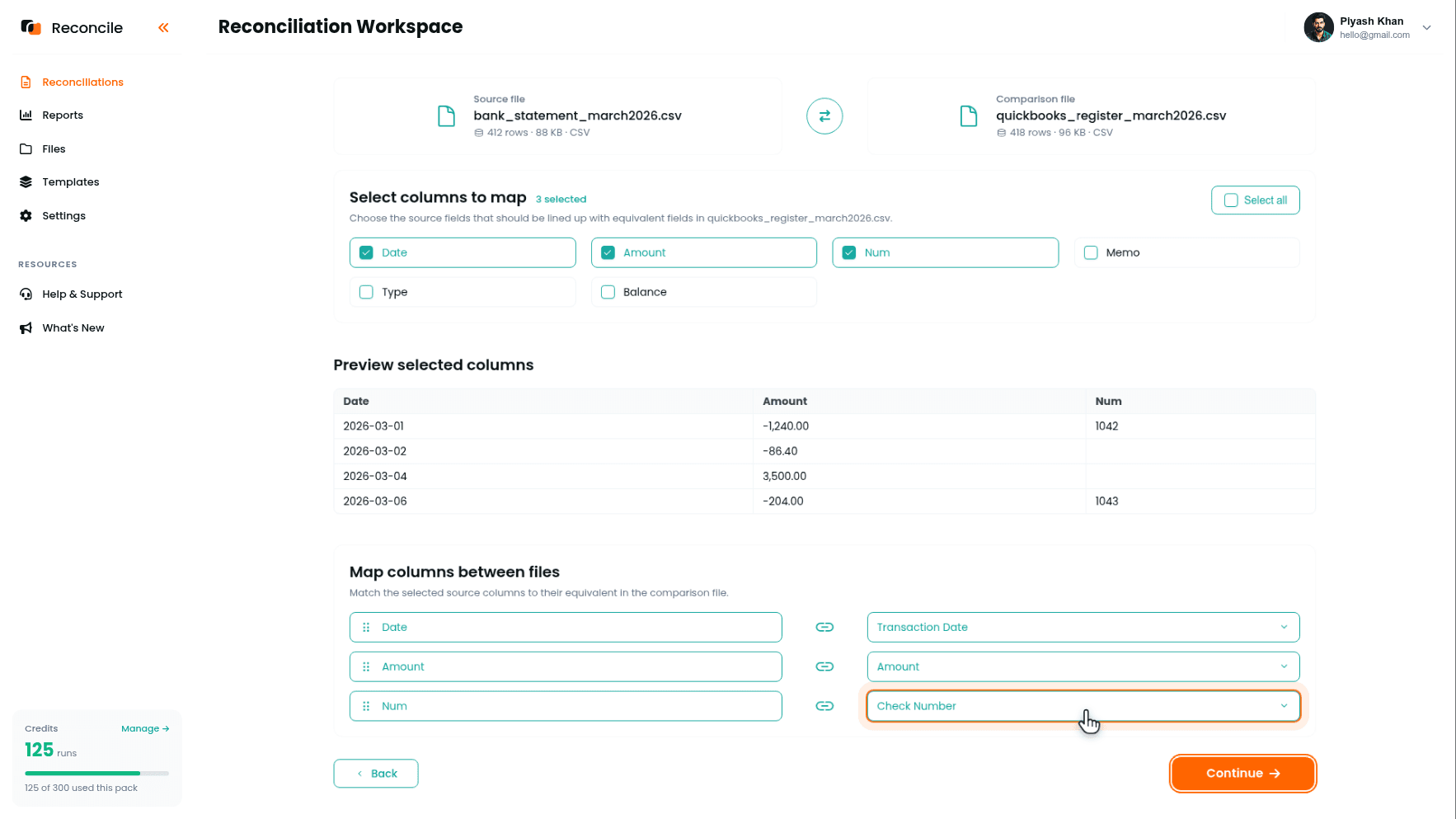
Reconcile suggests the matching column under We suggest matching on:, with its reasons under Why this match?, and the Preview match key values table shows sample values from both files pairing up before you commit.
Which pair is right depends on the account's activity. Check number is the strong choice when most of the activity is checks: it is unique, present on both sides, and immune to timing. But QuickBooks assigns no check number to debit card charges, ACH transfers, or wires, so for an account with mixed activity, confirm Amount as the matching column instead, and let the date comparison in the next step do the timing work. Within a single statement period, amounts identify transactions well, and the two failure modes take care of themselves: two genuinely identical amounts land in the Duplicates tab for direct review, which is precisely where a check entered twice belongs, and a transaction recorded for the wrong amount lands in the Missing categories on both sides, one row each, pointing at itself.
Step 4: Set the Tolerances
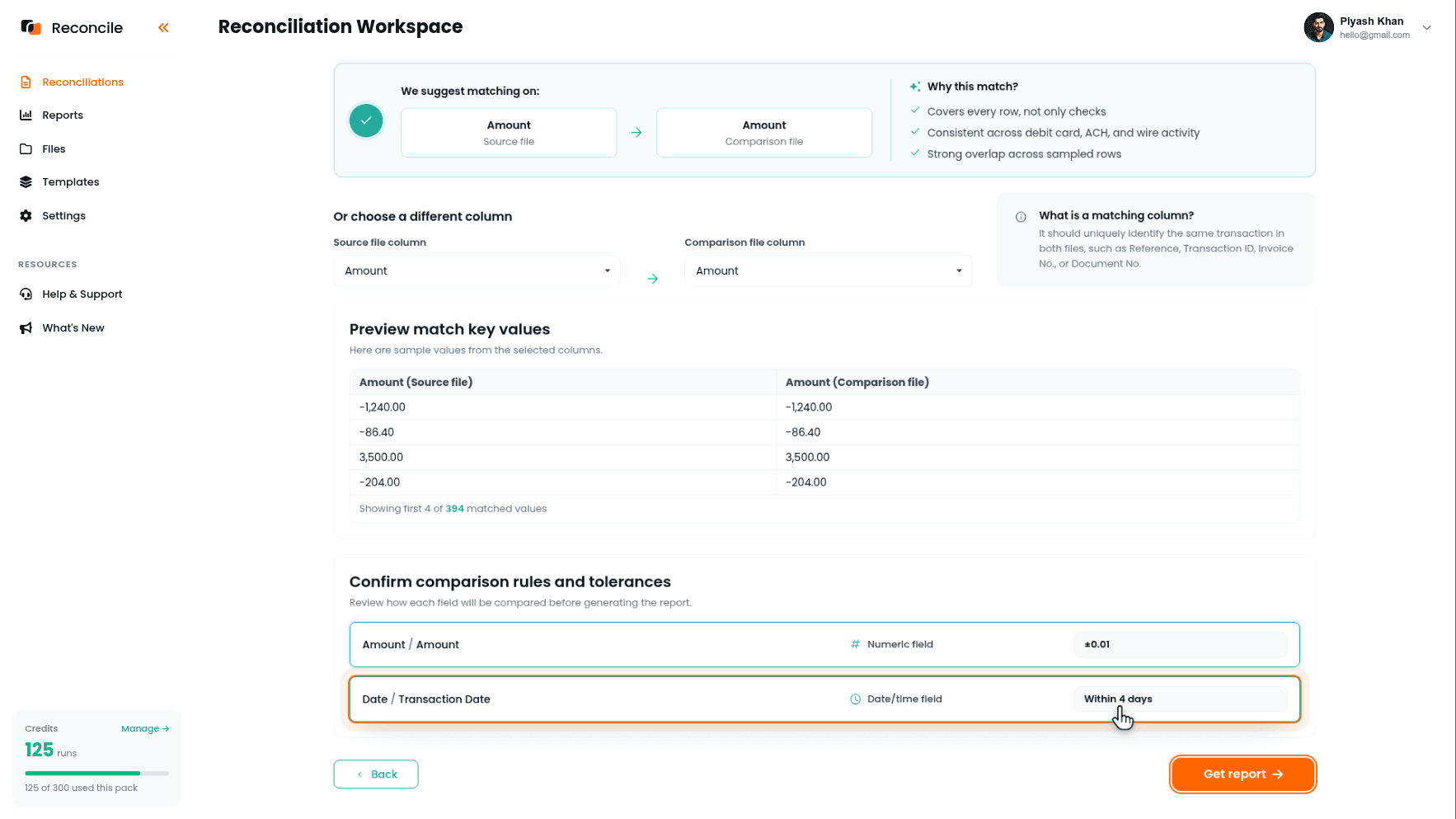
Under Confirm comparison rules and tolerances, each compared pair shows its type and tolerance.
If matching on check number, set the amount tolerance to zero, or a cent to absorb rounding and nothing wider, since a real amount discrepancy on a bank account is exactly what this comparison exists to catch.
Date needs a wider tolerance here than it would on a payment processor payout. A check written and entered in QuickBooks on the 28th can take one or two weeks to reach the bank and clear, depending on when the recipient deposits it. Within 3 to 5 days is reasonable for ACH and debit activity; for a check-heavy account matched on check number, widen the date window further or leave date out of the comparison entirely, since clearing time makes date agreement unreliable as a signal.
Click Get report.
Step 5: Read the Report
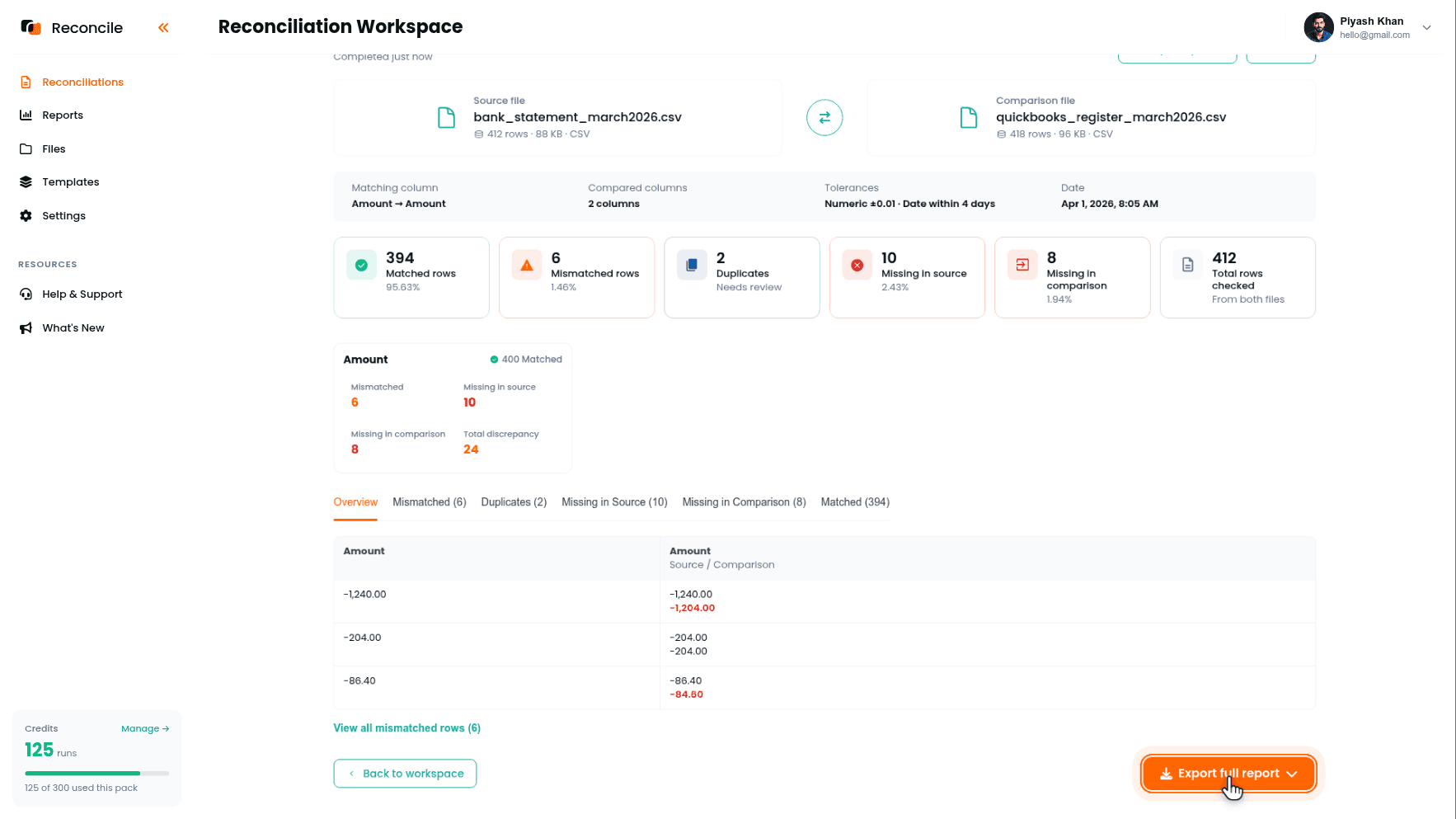
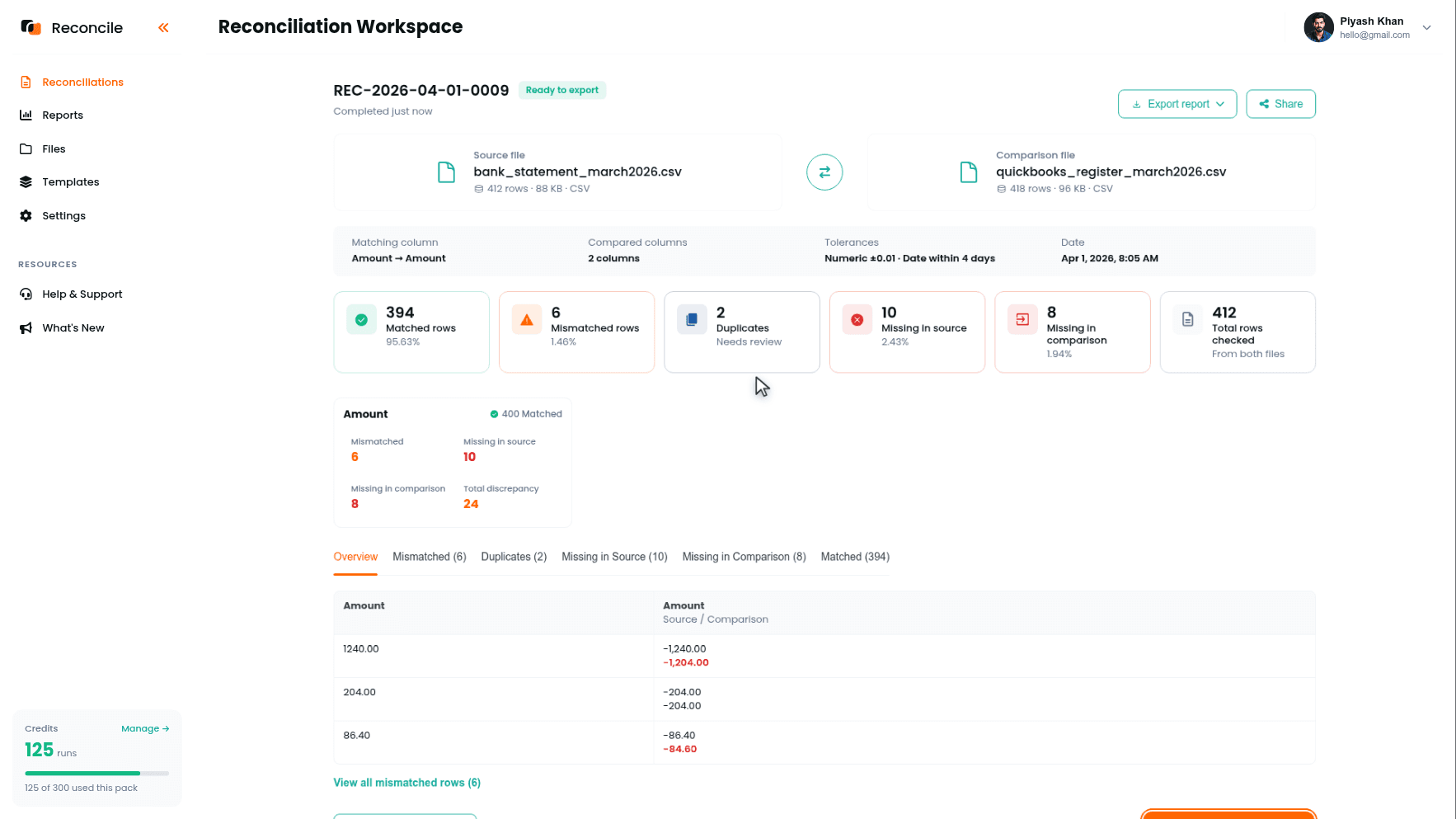
The report sorts every row from both files into the five categories, and each maps onto a specific QuickBooks failure mode:
- Matched rows: a bank transaction and a QuickBooks entry agree within tolerance. This is the line-by-line confirmation the balance check never gives.
- Duplicates: the same value appears more than once on one side. A check entered twice in QuickBooks, or a deposit entered once manually and again as a bank feed match, surfaces here on its own. This is the exact offsetting-error case the QuickBooks Reconcile screen cannot see.
- Missing in comparison: bank transactions with no QuickBooks entry: usually a bank fee, an interest payment, or a service charge the bank applied automatically that nobody has entered into QuickBooks yet.
- Missing in source: QuickBooks entries with no bank transaction: usually an outstanding check, written and recorded but not yet cashed, an expected timing gap, or an entry that was voided after the export was pulled and should not be there at all.
- Mismatched rows: matched on the key but disagreeing on a compared column, shown side by side with the difference highlighted: a check written for $1,240 but entered into QuickBooks as $1,204, the transposition the balance check would never have flagged if another small error offset it.
Step 6: Explain Each Exception
Work the categories in order of what they usually mean:
- Outstanding checks (Missing in source). Expected, not an error; each resolves itself once the check clears in a later period.
- Deposits in transit (Missing in source). Recorded in QuickBooks on the day received, posted by the bank a day or more later. Same explanation, opposite direction of money.
- Unrecorded bank fees or interest (Missing in comparison). The most common finding, and the one that needs an actual entry made in QuickBooks.
- Duplicate entries (Duplicates). Delete the extra entry in QuickBooks; this is the error the ending-balance check was structurally unable to catch.
- Amount discrepancies on real transactions (Mismatched). Correct the QuickBooks entry to what the bank actually processed.
An outstanding check explained this month does not need to be re-investigated next month if it is still on the list, only checked to confirm it finally cleared.
Step 7: Export the Report
The report is marked Ready to export. Click Export full report, which produces a PDF summary and an Excel workbook with every row sorted into its category. Record the explanation for each exception against its row in the workbook: explained, needs correction, or still open. The PDF is what gets handed to whoever asked for the second look, a controller, an auditor, a lender, showing not just that the ending balance matched but that every individual transaction was checked against the bank statement and every exception has a documented explanation. The workbook behind it is the row-level record that backs that claim.
Key takeaways
- QuickBooks's own Reconcile screen only confirms the ending balance matches. It cannot catch two errors that offset each other, since the total still comes out right. The report's Duplicates and Missing categories catch exactly those, row by row.
- Never tick the Balance column when selecting columns to map. One upstream error shifts every balance figure after it, turning a single mistake into dozens of false mismatches.
- Check number is the right matching column for a check-heavy account. For mixed activity, match on amount and compare date under tolerance: genuine same-amount pairs surface in the Duplicates tab instead of matching silently.
- Outstanding checks and deposits in transit are expected, explainable timing gaps, not errors. Set the date tolerance wide enough to account for how long a check realistically takes to clear.
- Unrecorded bank fees and interest are the most common Missing in comparison finding. A duplicate QuickBooks entry is the most common finding the balance check alone would never have surfaced.
- Leave Memo, Description, and Type out of the mapped columns. They describe the same transaction in different words and will not agree even when nothing is wrong.



