


Before you start
Three files are needed before starting:
- A bank statement covering the period the payouts landed, showing each deposit and its amount.
- A Stripe payout report, itemized by transaction. Stripe's dashboard provides this per payout, or as a balance transaction export covering a date range, listing each charge, fee, refund, and dispute that rolled into a given payout.
- An internal sales ledger or order list, showing what you expected to be charged for each sale, order, or invoice.
Two identifiers are also needed, one for each pass:
- A way to match a payout to its bank deposit: the payout ID if the bank exports it as a reference column, or the payout amount itself.
- A way to match an individual Stripe transaction to your own record of it: a charge ID, order ID, or shared reference number.
No column headers need to match between any of these files, and no file needs to be cleaned before uploading. CSV and Excel both work.
Step 1: Export the Three Files at the Source
Pull the bank statement directly from the bank's portal. Pull the payout report from Stripe, either the itemized breakdown for each payout or the balance transaction export for the full period. Pull the internal ledger or order list from wherever it is kept.
Check the payout dates against the bank statement period before moving on. A payout initiated near the end of the month can arrive in the bank a few days into the next one. If the bank statement only covers a single calendar month, a payout that straddles the boundary will land in the report's Missing categories, not because anything is missing, but because the two files are not covering the same window. Filter the Stripe payout report by arrival date, not by the date the underlying charges occurred, so it lines up with what the bank statement actually shows.
Step 2: Upload and Map the Payout Pair
Start a new reconciliation. Put the Stripe payout report in the Source file slot, the main file to check, and the bank statement in the Comparison file slot, the file to match against. Click Start Reconciliation. This pass answers one question: did the money arrive correctly?
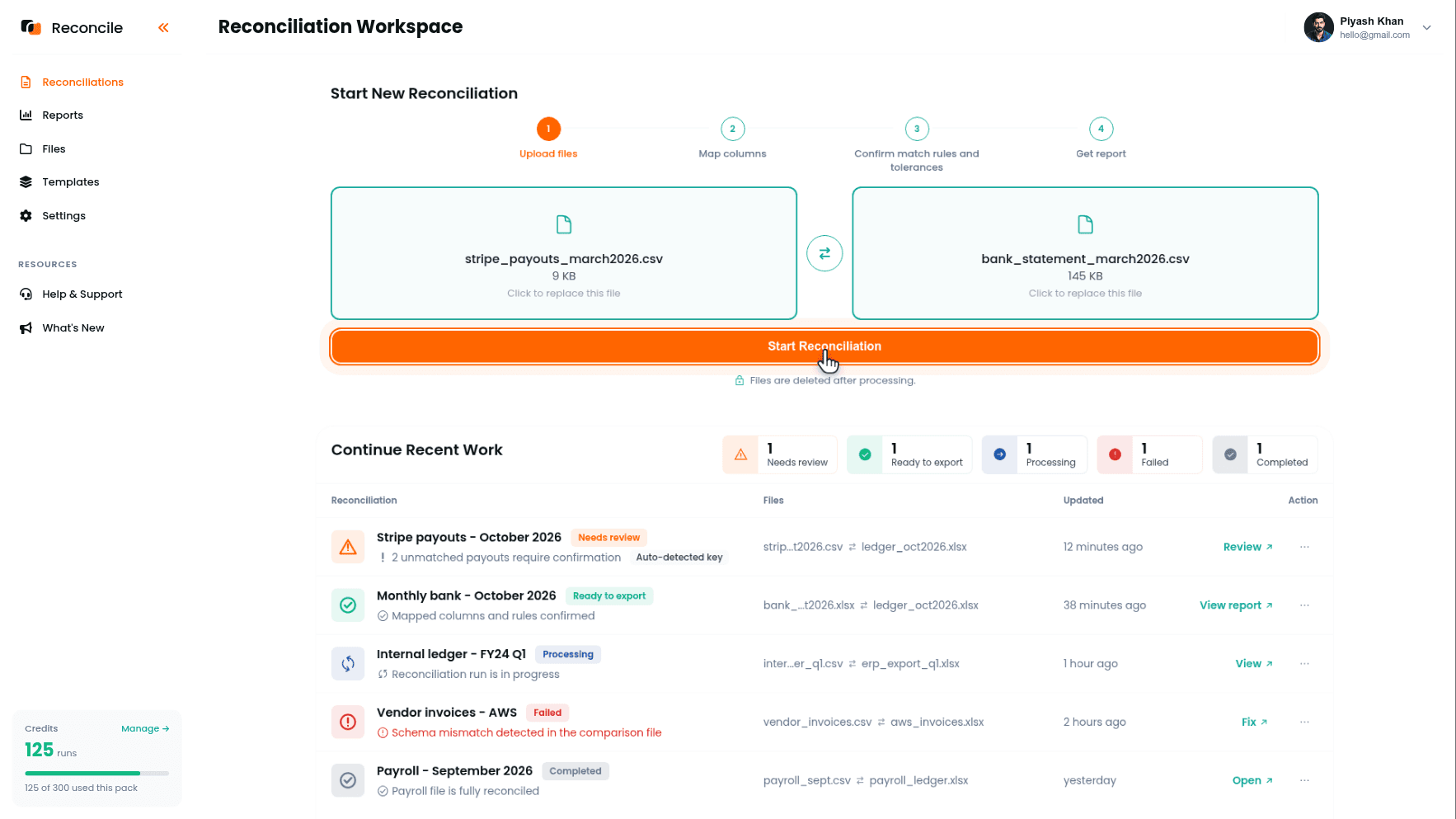
On the Map columns step, tick the payout amount and the arrival date in the Select columns to map grid, confirm them in the Preview selected columns table, and pair them under Map columns between files: Stripe's payout amount to the bank's deposit amount, Stripe's arrival date to the bank's transaction date. If the bank statement carries the payout ID in a reference column, tick and map that pair too.
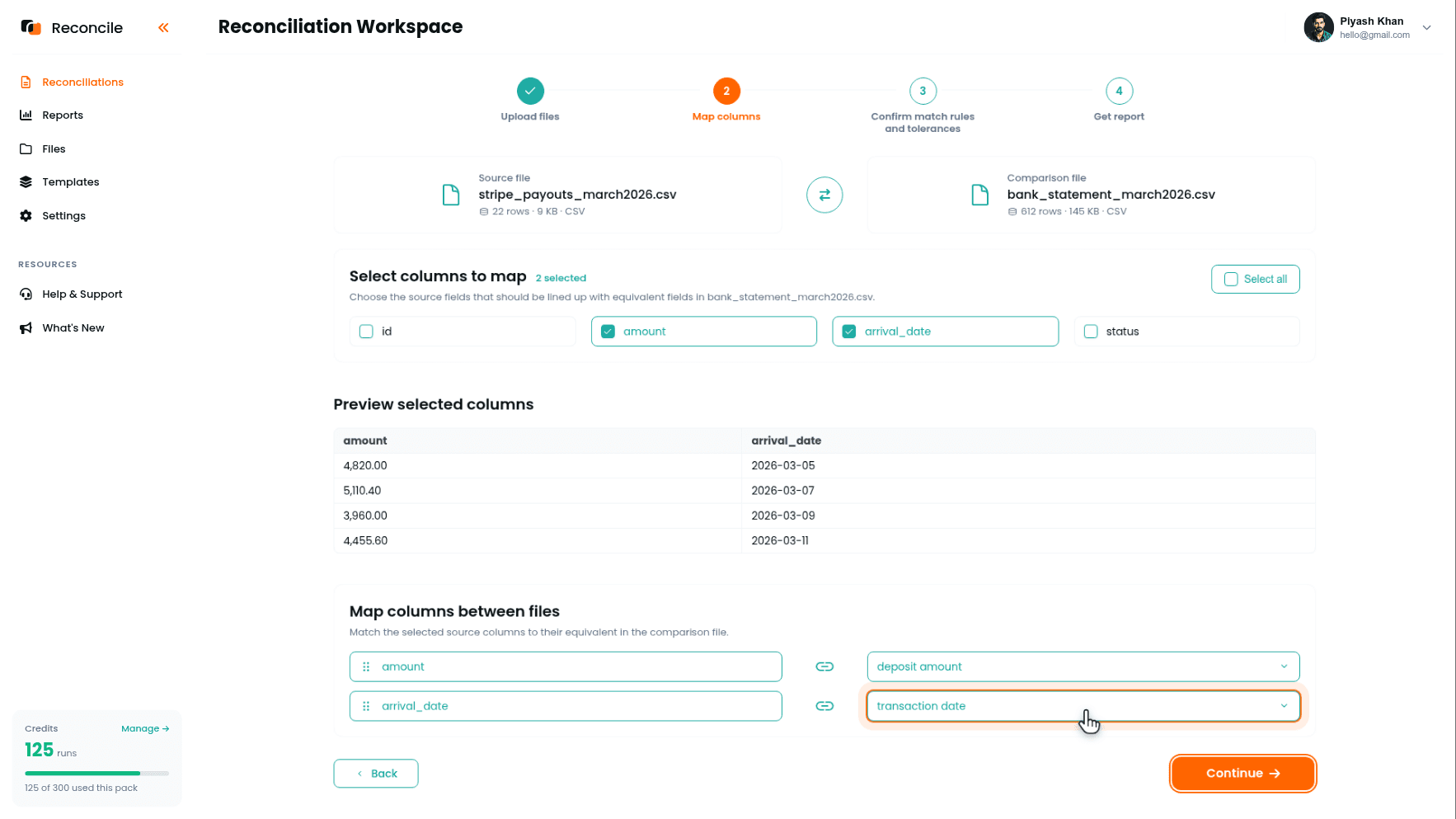
Step 3: Confirm the Payout Matching Column and Tolerances
Reconcile suggests the matching column under We suggest matching on:, with its reasons under Why this match?. If the payout ID is present on both sides, that pair is the matching column: confirm it. If it is not, confirm the amount pair as the matching column. Payout amounts are net figures that vary from cycle to cycle, so within a statement period they identify payouts cleanly, and if two payouts do share an amount, the report's Duplicates tab puts them in front of you for direct review instead of pairing them silently. The Preview match key values table shows the values lining up before you commit.
Under Confirm comparison rules and tolerances, set date to within 1 to 2 days, covering a bank posting a deposit one business day after Stripe recorded the arrival. If matching on the payout ID, set the amount tolerance to zero, enough to absorb nothing: Stripe payouts are exact, and a wide tolerance at this stage would let a genuinely short payout pass as a match.
Click Get report.
Step 4: Read the Payout-Level Report
A Matched row confirms that a specific payout arrived in the bank for the exact amount Stripe recorded. A Missing in comparison row is a payout Stripe issued that has not shown up in the bank, worth checking against Stripe's own payout status before assuming an error: a payout still in transit is timing, not loss. A Missing in source row is a bank deposit not accounted for in the payout report, worth checking for a manual transfer or a payout from a different processor. A Mismatched row shows the Stripe figure and the bank figure side by side with the difference highlighted, usually a bank fee taken out of the deposit.
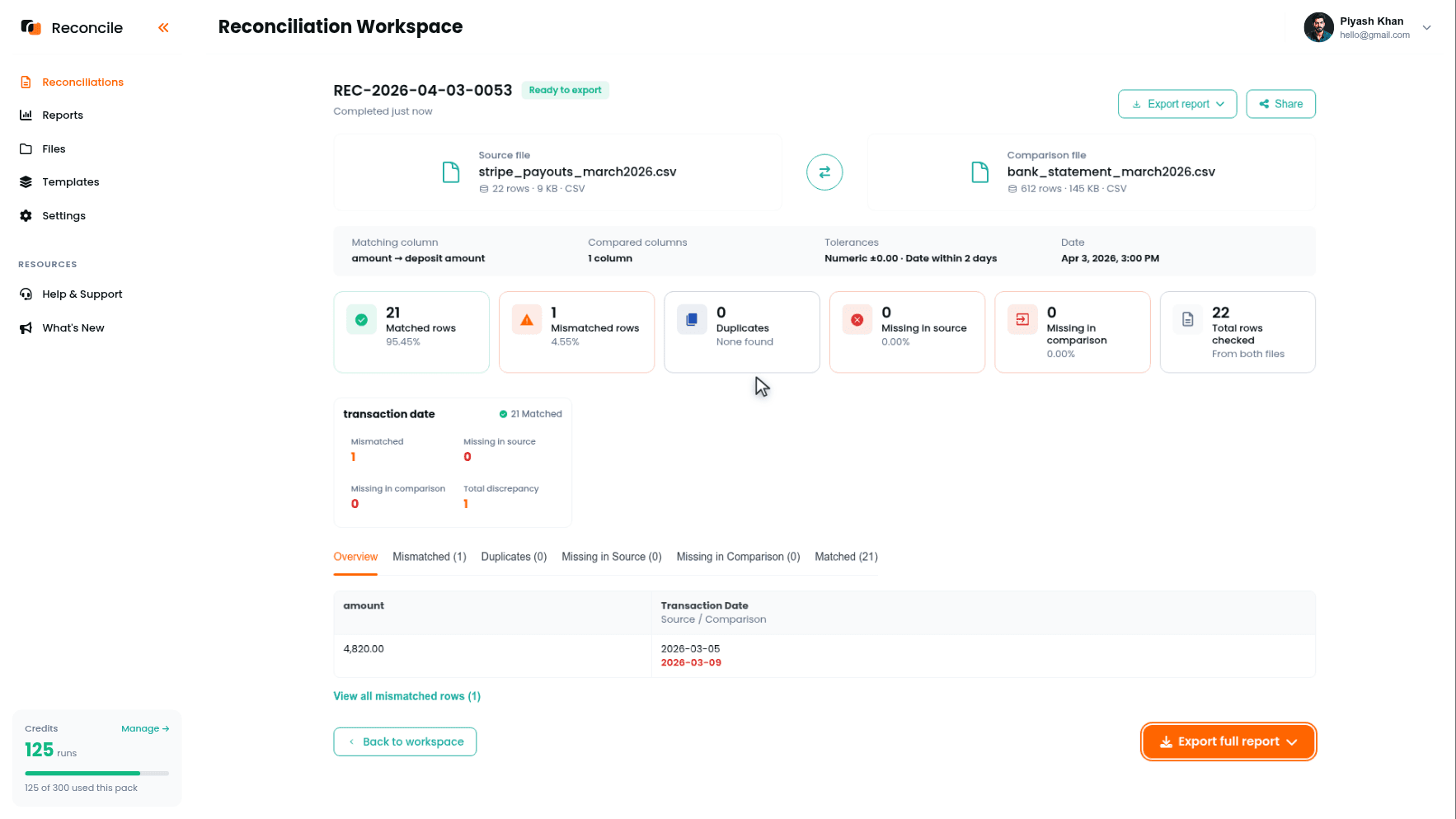
Once this pass is clean, or its exceptions are explained, move to the second reconciliation. It answers a different question: does the payout reflect the correct underlying charges?
Step 5: Upload and Map the Transaction Pair
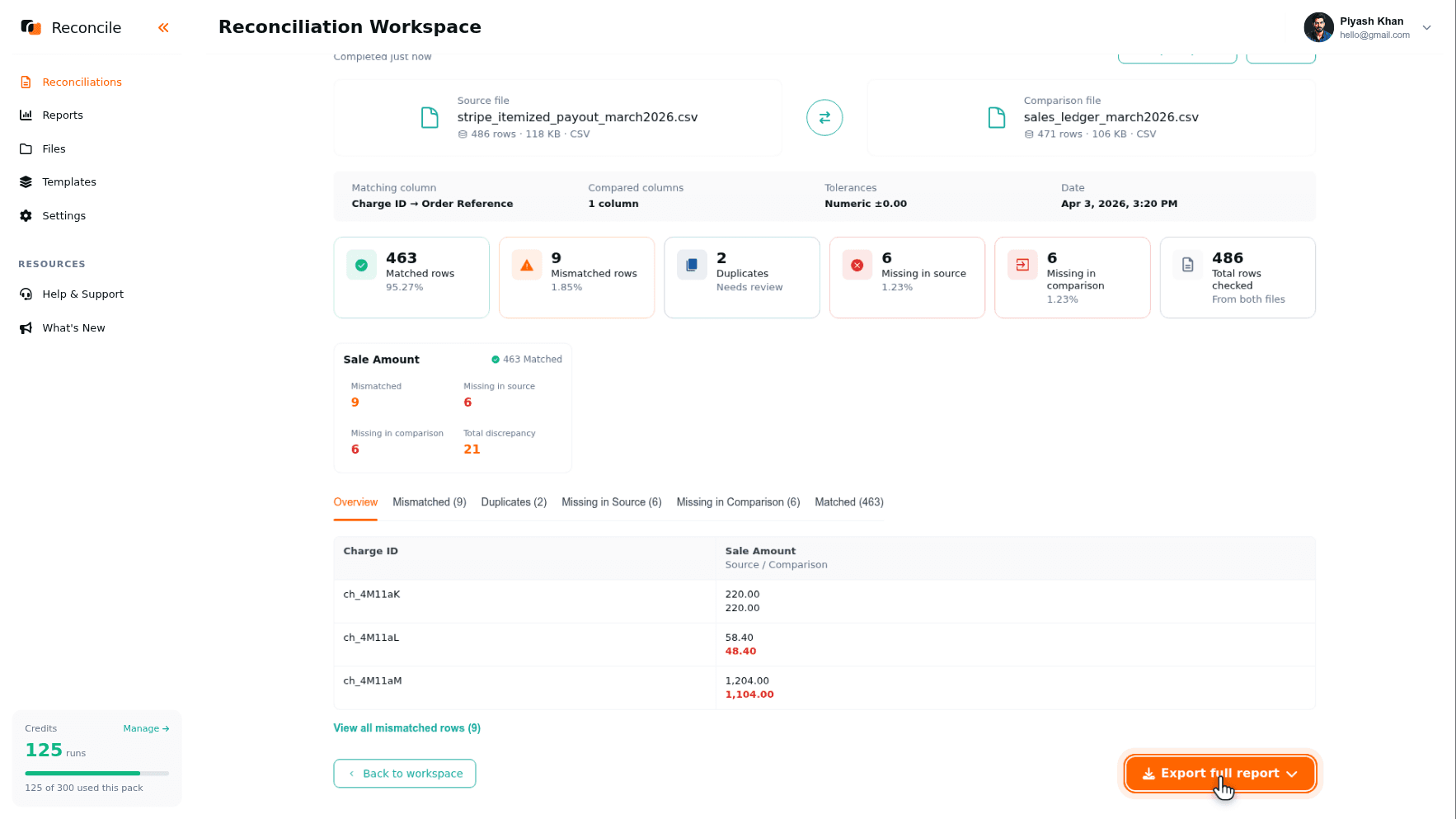
Start a second reconciliation. Put the itemized Stripe payout report in the Source file slot and the internal sales ledger in the Comparison file slot. Each row on the Stripe side is a single charge, fee, refund, or dispute. Each row on the ledger side is a single sale or invoice.
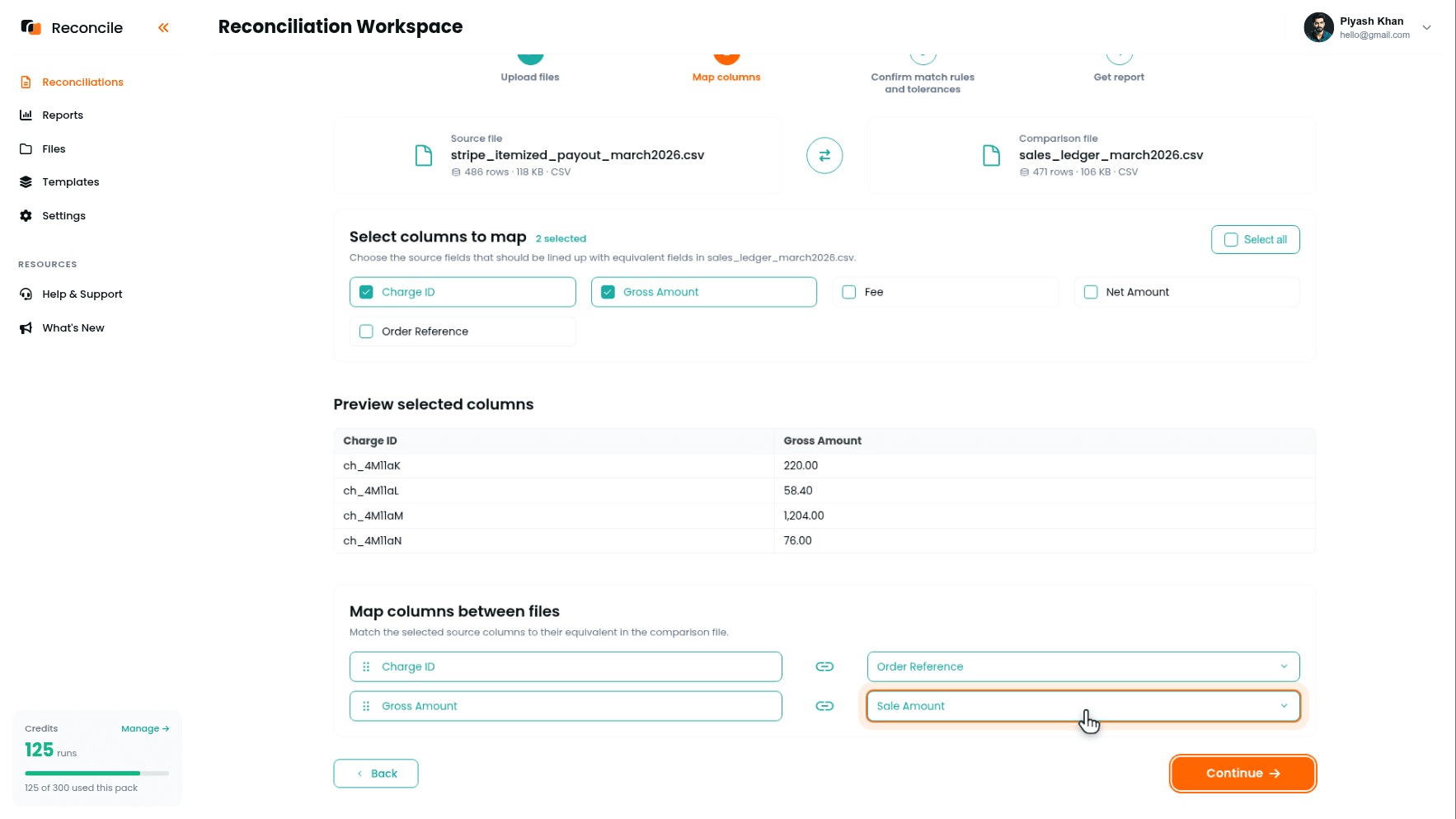
On the Map columns step, tick and pair the columns that describe the same thing: Stripe's charge ID to the ledger's order reference, Stripe's gross amount to the ledger's sale amount. Leave Stripe's fee and net columns unticked: the fee has no counterpart in the ledger, and the difference between net and the sale amount is always exactly the fee, which is arithmetic, not a discrepancy.
Step 6: Confirm the Transaction Matching Column and Tolerances
Confirm charge ID → order reference as the matching column, the shared, unique identifier across both files, and check the pairing in Preview match key values.
Set the gross amount tolerance small enough to catch a real pricing mismatch, zero for same-currency charges, a cent or two if currency rounding is in play. Compare date only if the ledger records a payment date rather than an invoice date, and give it a wider tolerance than the payout pass, since a charge date and an invoice date can legitimately differ by more than a payout ever would.
Click Get report.
Step 7: Read the Transaction-Level Report
A Mismatched row at this level, charge ID matched, amounts disagreeing, usually has one of a few explanations:
- A partial refund reduced the amount without a matching adjustment on the ledger side.
- A dispute or chargeback removed funds from the payout after the original charge was already recorded as a sale.
- A pricing mismatch, a discount or manual adjustment applied at checkout that never reached the ledger.
A Missing in comparison row is a charge in Stripe with no matching order, worth checking for a test transaction or a sale recorded under a different reference. A Missing in source row is an expected sale the processor never captured. Duplicates isolates repeated references, typically refund rows carrying the original charge's ID.
Step 8: Export Both Reports
Each report finishes marked Ready to export. Click Export full report on each, which produces a PDF summary and an Excel workbook per pass, and record the explanation for every exception against its row in the workbook: explained, needs correction, or still open. A fee difference explained once does not need to be re-investigated the next time it appears in the same form.
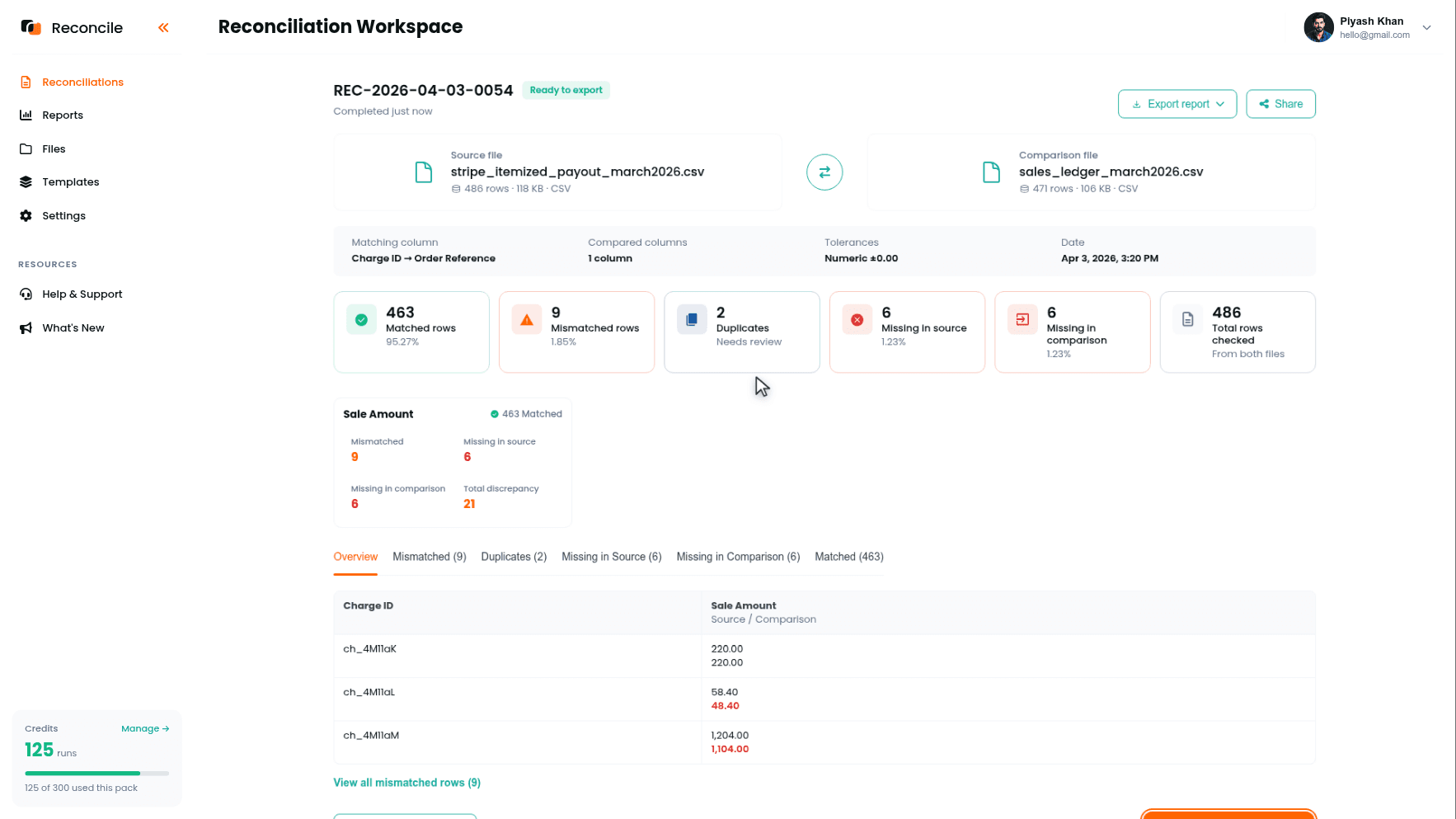
Together, the two exports answer the two questions this guide set out to answer: whether Stripe's money arrived correctly, and whether the payout correctly reflects the charges behind it. Keeping them as two reports, rather than forcing them into one, preserves which side of the process any remaining exception came from.
Key takeaways
- A Stripe payout is a net figure. Comparing it directly against gross sales will always show a difference, because fees, refunds, and disputes have already been subtracted before the deposit reaches the bank.
- End to end reconciliation is two reconciliations, not one: payouts against the bank, and itemized transactions against the ledger. Each has its own matching column and its own tolerances.
- A payout that straddles a month boundary lands in the Missing categories if the bank statement and Stripe payout report do not cover the same arrival window. Filter Stripe's report by arrival date, not charge date.
- Compare gross amount, not net amount, against the ledger, and leave the fee column unmapped. The fee is a separate line item, not a discrepancy to resolve away.
- Mismatches at the transaction level are almost always a refund, a dispute, or a pricing adjustment. Missing rows are almost always a test charge, a different reference, or an uncaptured sale. Each has a distinct cause and a distinct fix.
- Keeping the payout report and the transaction report separate preserves which stage of the process a remaining exception belongs to.



