


Before you start
- Shopify orders export in CSV format, covering the period you are reconciling
- Stripe balance transactions report in CSV format, filtered to the same date range, including charges and refunds
- Stripe payouts report in CSV format, covering the same period
- Bank statement export in CSV or spreadsheet format, covering the dates those Stripe payouts would have arrived (generally two or more business days after the end of your Stripe export period)
Step 1: Export Your Source Files
From Shopify: In Shopify Admin, go to Orders and export to CSV with all columns included. Each row represents one order. Depending on your Shopify version and export configuration, the column holding the Stripe charge ID is labeled "Payment Gateway Transaction ID," "Payment Reference," or "Transaction ID"; the values follow the format ch_3Mxxx... or py_xxx.... This column is the link between Shopify and Stripe. If it is missing from the export, re-export with all columns included before going further.
From Stripe: Go to the Stripe Dashboard, open the Balance section, and download two separate reports for the same date range. The first is the balance transactions report, which contains one row per charge, refund, adjustment, or fee; its "source" column holds the charge ID, and its "type" column distinguishes charges from refunds. The second is the payouts report, which contains one row per deposit to your bank account. Download them separately. They serve two different reconciliations.
Check the unit convention in the amount column of each Stripe report before uploading. Stripe's exports report amounts either in decimal currency or in the smallest currency unit, cents for USD, depending on the report and settings: a $100.00 charge appearing as 10000 means the file is in cents. If one side of a comparison is in dollars and the other in cents, every amount will disagree by a factor of 100; convert the cents column to dollars in the file before uploading so both sides carry the same unit.
From your bank: Export your bank statement for the period covering payout arrival dates. If your Shopify and Stripe exports cover March, extend your bank export through at least the second week of April to capture late-arriving payouts from the end of March.
Step 2: Upload the First Pair
Open Reconcile and use the Start New Reconciliation card. Put the Shopify orders export in the Source file slot, the main file to check, and the Stripe balance transactions report in the Comparison file slot, the file to match against. Click Start Reconciliation.
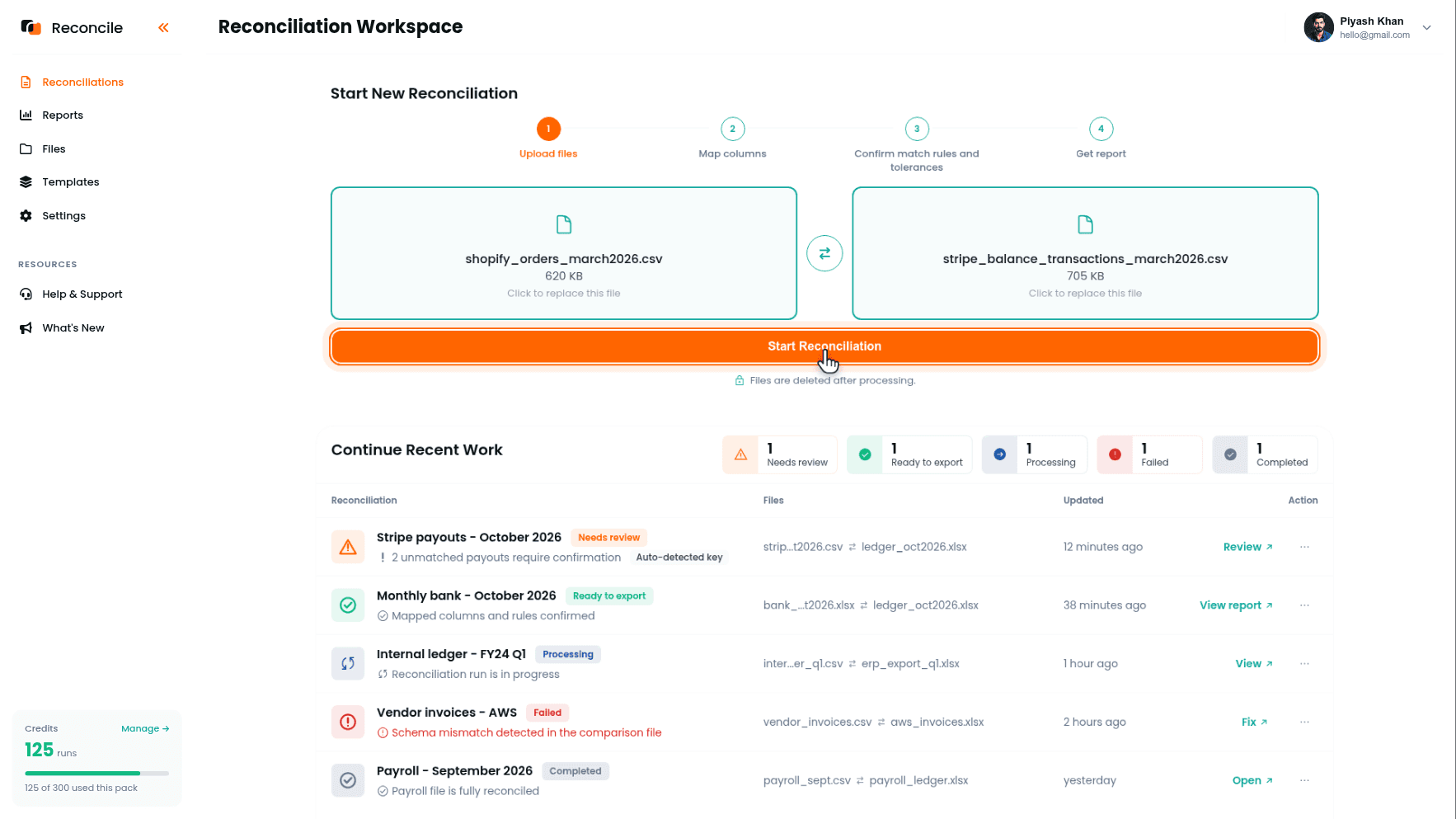
You do not need to rename headers, remove blank rows, or reformat either file before uploading. Each file card confirms what was read, row count, size, and format, and stays visible through every step, so you always know which file is which. Files are deleted after processing.
Step 3: Map the Shopify Columns to the Stripe Columns
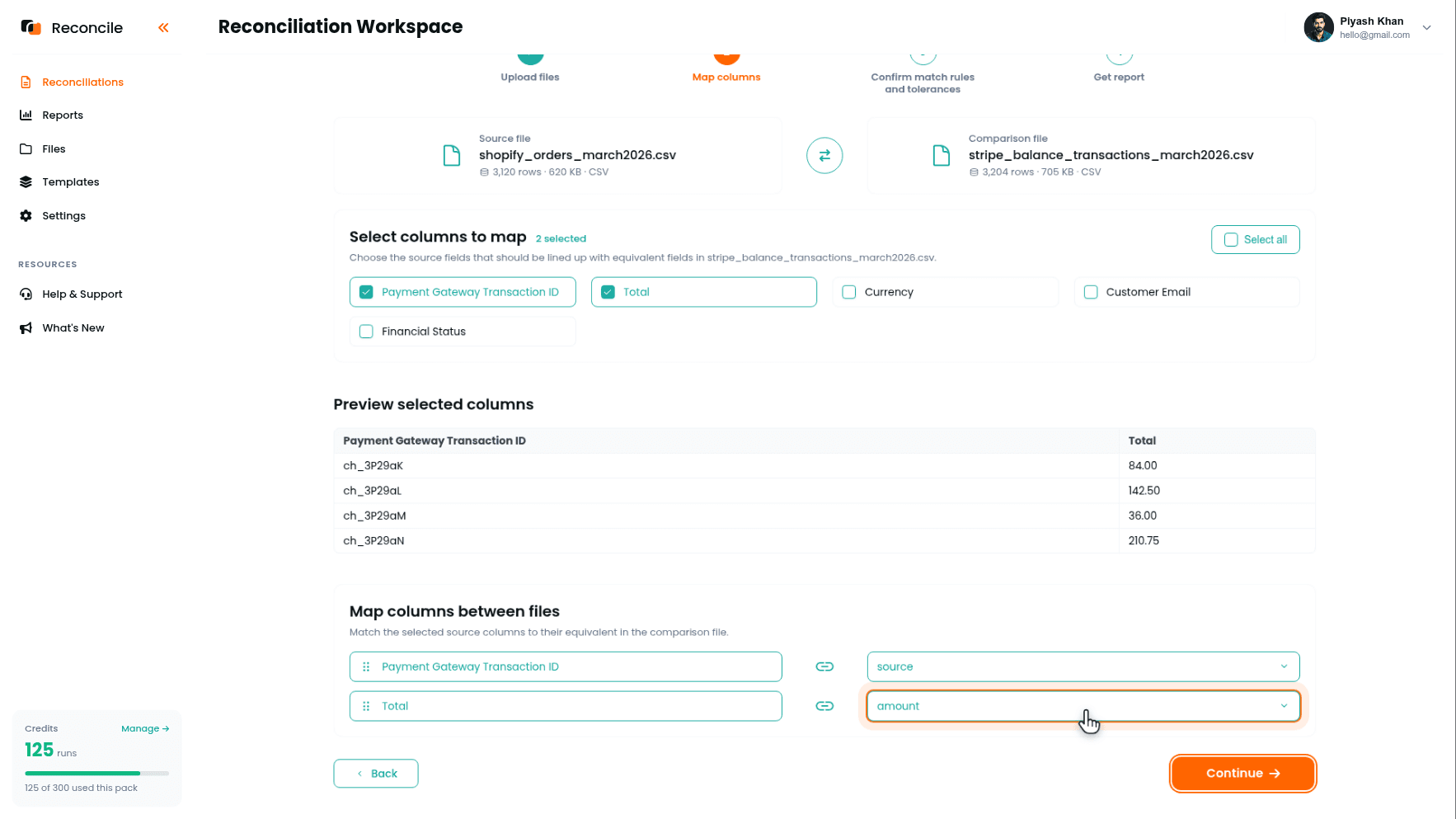
On the Map columns step, tick the columns that matter in the Select columns to map grid: the charge ID column and the order total. The Preview selected columns table shows sample rows, which is where you confirm the charge ID column actually carries ch_ values and the total carries the gross order amount. Then pair them under Map columns between files:
- Shopify "Payment Gateway Transaction ID" to Stripe "source" (the charge ID column in the balance transactions export)
- Shopify "Total" to Stripe "amount" (gross charge amount)
If both files contain currency columns and you sell in more than one currency, tick and map those as well.
Step 4: Confirm the Matching Column
Reconcile suggests the matching column under We suggest matching on:, with its reasons under Why this match?. For a Shopify-to-Stripe comparison, the charge ID pair is the correct matching column: it is unique per transaction in both systems and present in both exports for any order processed through Stripe. Confirm it, or select the charge ID pair under Or choose a different column if a different pair is suggested. Amount is not a reliable matching column at this level: multiple charges share the same amount every day. The Preview match key values table shows the charge IDs pairing up across the two files before you commit.
Step 5: Set the Amount Tolerance
Under Confirm comparison rules and tolerances, the Total-to-amount pair shows as a numeric field. For same-currency transactions with no manual adjustments, set the tolerance to zero. Shopify sends the exact amount to Stripe; Stripe charges that exact amount. They should match to the cent, and any gap is a finding.
For multi-currency orders where Stripe converts at its own exchange rate, set a tolerance that reflects your acceptable conversion variance instead.
Click Get report.
Step 6: Read the Transaction-Level Report
The report sorts every order and every charge into five categories:
Matched rows: A Shopify order and a Stripe charge share the same charge ID and the amount difference falls within your tolerance. No action required.
Missing in comparison: The charge ID from this Shopify order does not appear anywhere in the Stripe balance transactions export. Investigate the order's payment gateway before assuming a processing error. If the order was collected through PayPal, Shopify Payments, or a manual payment method rather than Stripe, there will be no Stripe charge to match. If the gateway is confirmed as Stripe, check whether the Stripe export date range covers the order date.
Missing in source: A charge appears in Stripe with no corresponding Shopify order. Common causes include test-mode charges that were not filtered out of the export, charges created directly in Stripe outside of the Shopify flow, and Shopify orders that were deleted after the charge was collected.
Duplicates: The same charge ID appears more than once in a file, typically a refund row in the Stripe export carrying the original charge's source ID. The tab isolates these so they explain themselves.
Mismatched rows: The charge IDs matched, but the amounts differ, shown side by side with the difference highlighted. This typically occurs when a partial refund was applied in Stripe after Shopify recorded the original order total, or when a discount applied in Shopify was not reflected in the amount sent to Stripe due to a misconfigured integration.
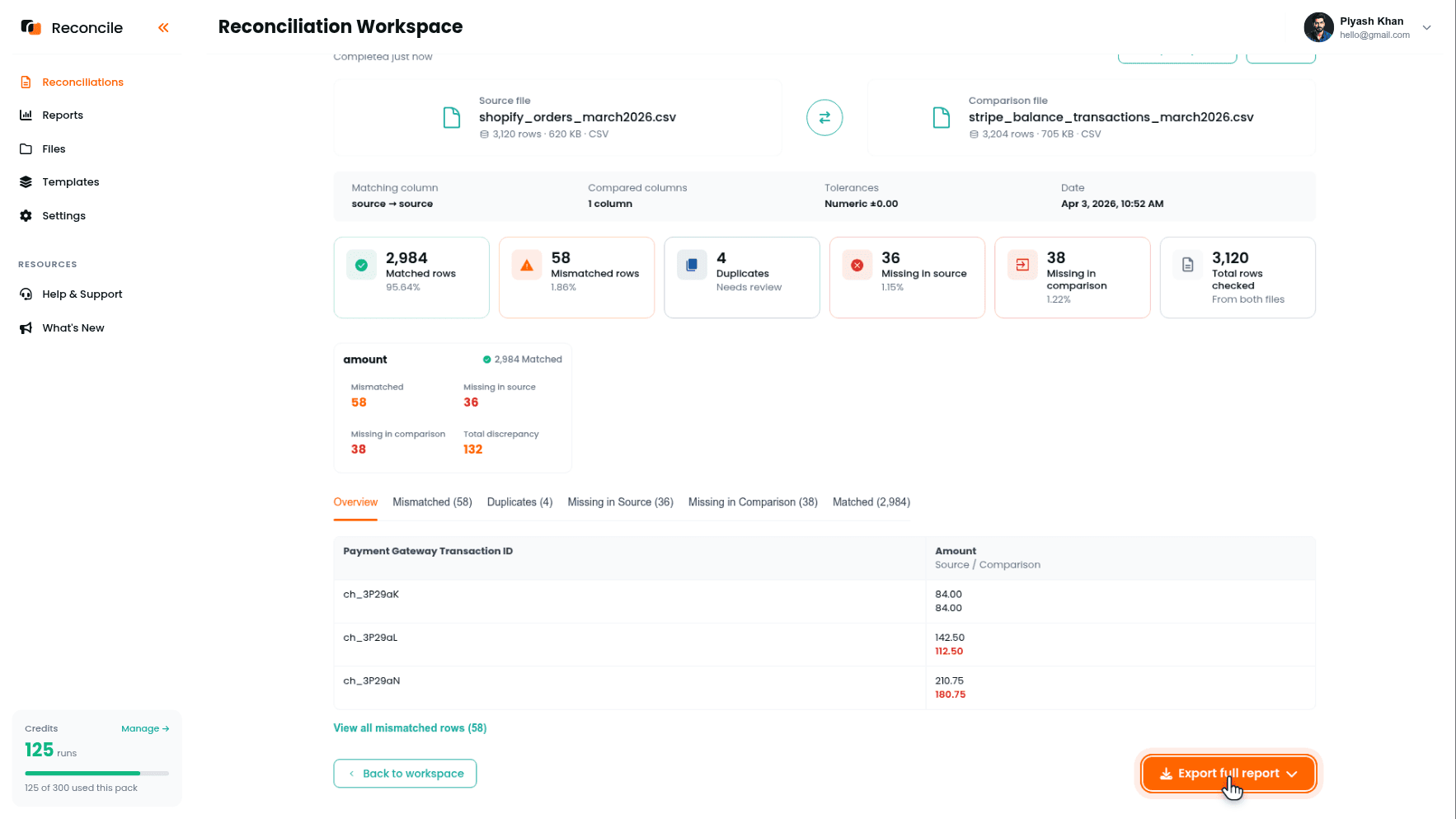
Work through every exception before starting the second reconciliation. Each finding either closes with a clear explanation or becomes a documented item in your final report.
Step 7: Upload the Stripe Payouts Report and Bank Statement
Start a second reconciliation. Put the Stripe payouts report in the Source file slot and the bank statement export in the Comparison file slot.
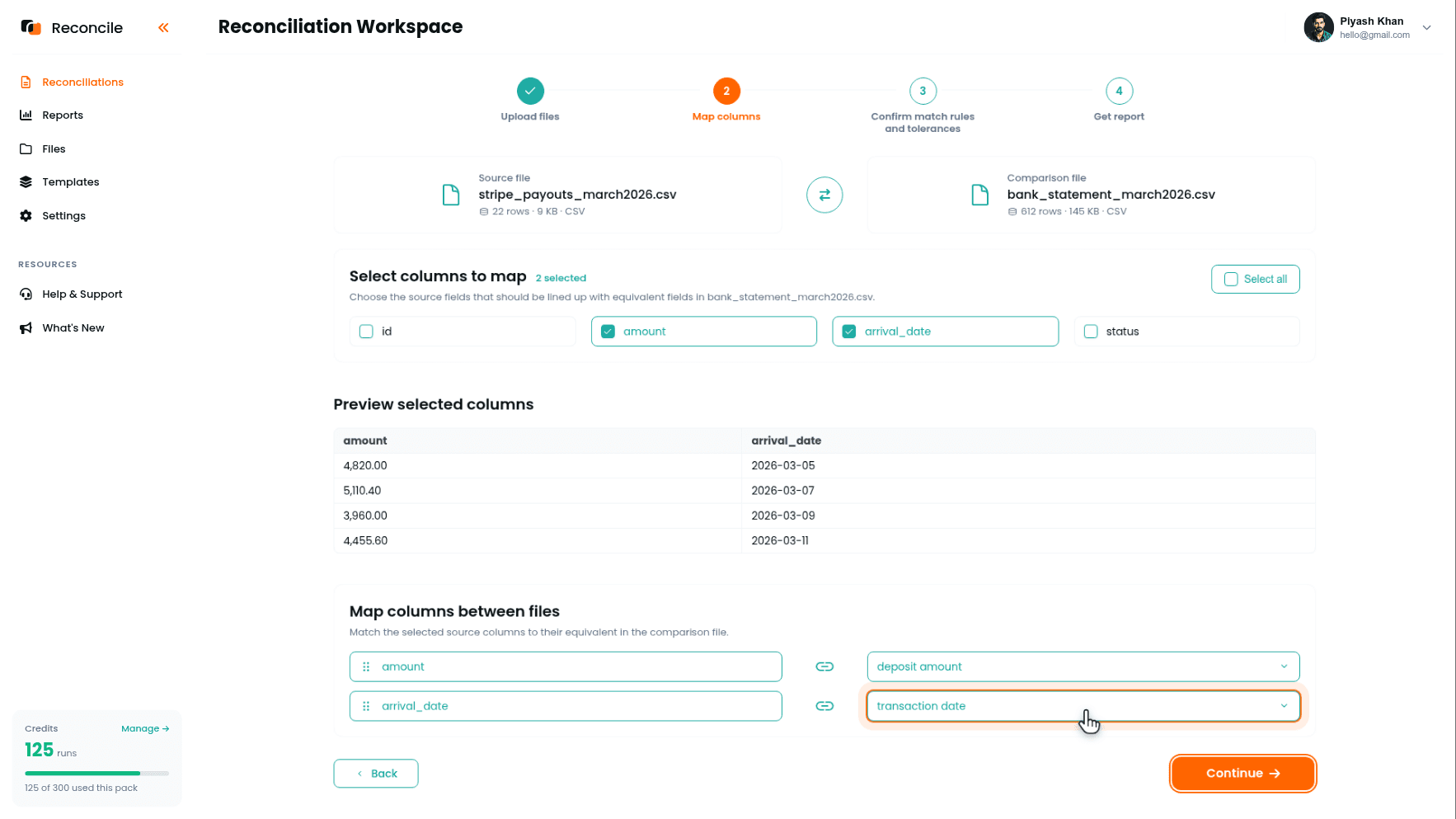
The Stripe payouts report contains one row per payout: the payout ID (po_xxx...), the amount, the arrival date, and the status. Your bank statement contains one row per deposit. On the Map columns step, tick and pair:
- Stripe "amount" to the bank's credit or amount column
- Stripe "arrival_date" to the bank's date column
- Stripe "id" (the payout ID) to the bank's reference column, if your bank exports the payout reference as its own column
Step 8: Confirm the Payout-Level Matching Column and Tolerances
If the bank export carries the Stripe payout ID in a reference column, confirm that pair as the matching column: it is exact and immune to timing. If the bank buries the reference inside a free-text description or omits it entirely, confirm amount as the matching column instead, and let the date comparison handle timing. Payout amounts are net figures that vary cycle to cycle, so they identify payouts well, and if two payouts in the period do share an amount, the Duplicates tab flags them for direct review instead of pairing them silently.
Set the amount tolerance to zero if amount is a compared column rather than the matching column. A Stripe payout and its corresponding bank deposit should be identical. A difference points to a currency conversion fee charged by your bank on a non-USD payout, a bank fee deducted from the deposit, or a genuine discrepancy worth investigating. Set the date tolerance to within 2 to 3 days, covering the gap between Stripe's recorded arrival date and the bank's posting date.
Click Get report, and read it with the same categories as Step 6. Missing in comparison payouts, in the Stripe report but not in your bank statement, are usually in transit: the payout was issued within your Stripe export period but had not yet arrived when you downloaded the bank statement. Extend your bank export window to confirm. Missing in source deposits with no corresponding Stripe payout may originate from a different payment processor or a manual transfer; trace the deposit description to confirm the source.
Step 9: Export Both Reports and Record the Explanations
Each report finishes marked Ready to export. Click Export full report on each, which produces a PDF summary and an Excel workbook per pass, and record the reason against every exception row in the workbook. Common explanations for this workflow:
- Date range gap: The export period for one source did not extend far enough to include this transaction.
- Different gateway: The Shopify order was collected through PayPal, Shopify Payments, or another processor, not Stripe.
- Test charge: A Stripe test-mode transaction included in a live export.
- Partial refund: The Stripe amount reflects a post-order adjustment not reflected in the Shopify record.
- In transit: A Stripe payout issued but not yet settled in the bank statement at the time of export.
- Bank fee deducted: The bank reduced the deposit amount for a currency conversion or account fee.
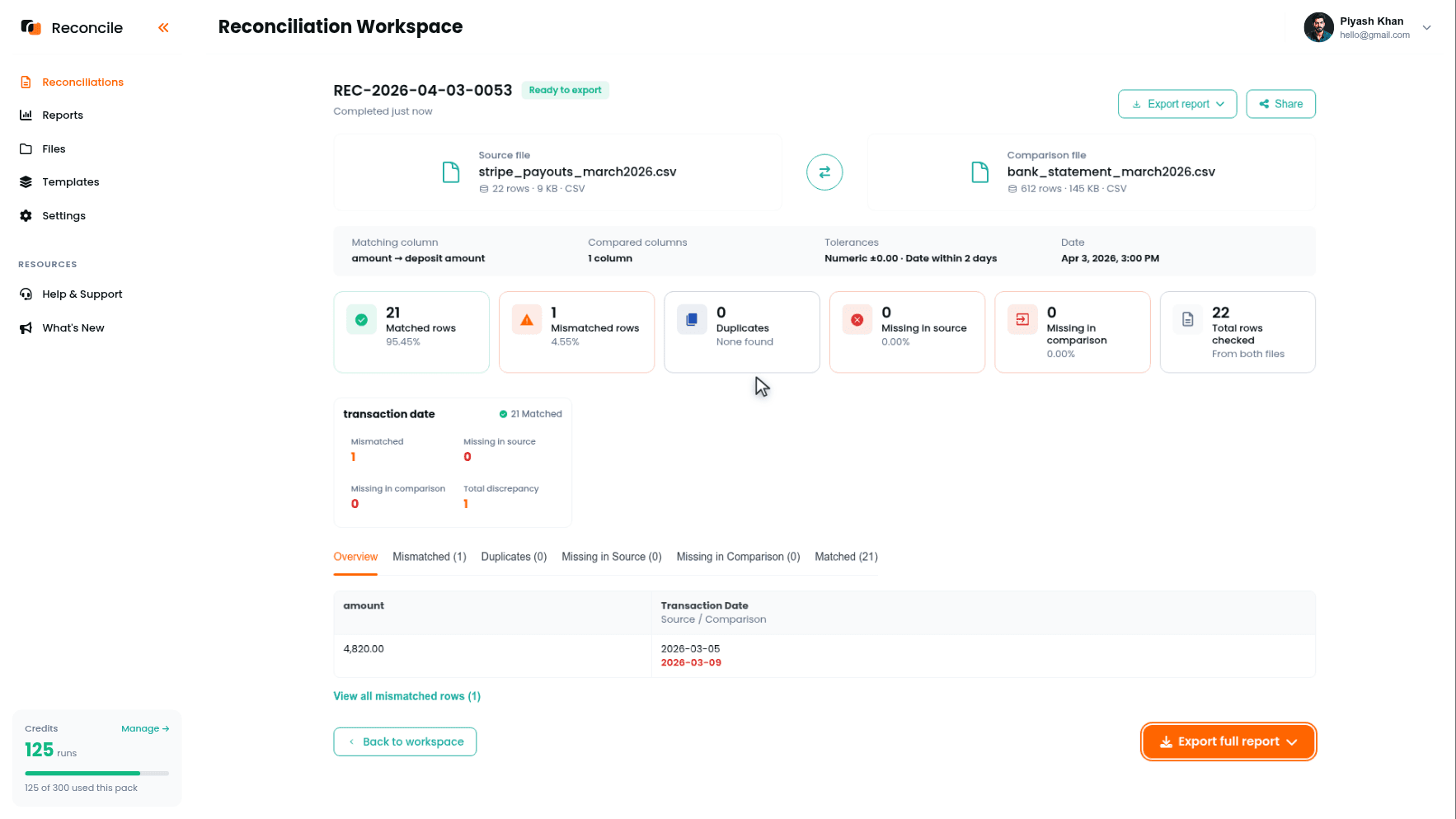
Together the two exports cover both layers: the order-level match between Shopify and Stripe, and the payout-level match between Stripe and your bank.
Key takeaways
- Shopify's gross order total will never equal your bank deposit. The correct path is two reconciliations in sequence: Shopify gross against Stripe gross at the charge level, then Stripe payouts against bank deposits at the payout level.
- The Stripe charge ID is the only reliable link between Shopify and Stripe at the transaction level. In Shopify's export it appears in "Payment Gateway Transaction ID." In Stripe's balance transactions export it appears in the "source" column. Make that pair the matching column.
- At the payout level, match on the payout ID if your bank exports it as a reference column, and on amount if it does not, with date compared under a small tolerance and the Duplicates tab covering same-amount payouts.
- Check the unit convention in Stripe's amount columns before uploading. A file in cents compared against a file in dollars disagrees on every row by a factor of 100; convert to one unit first.
- A Stripe payout appearing in your Stripe report but not in your bank statement is almost always a timing issue, not a missing deposit. Export the bank statement far enough past your Stripe period to capture payouts initiated in the final days of that range.



