


Before you start
- A PayPal account with activity export access. Exports are available from the Activity or Reports section of the PayPal dashboard, downloadable as CSV.
- A bank statement covering the period when PayPal transfers landed. This is needed for the first pass.
- An internal sales record, order list, or ledger that tracks the individual transactions you expect to see in PayPal. This is needed for the second pass. It needs a reference field, an order ID, invoice number, or custom reference, that also appears in PayPal's Invoice Number or Reference Txn ID column.
Step 1: Export and Filter the PayPal Files at the Source
Download the PayPal activity report for the period you are reconciling. Before downloading, set two filters.
Currency filter: If the account holds balances in more than one currency, apply a currency filter at download time. A mixed-currency export places amounts in different currencies on adjacent rows. Comparing them against a single-currency bank statement produces a false mismatch on every row that touched a foreign currency.
Transaction type filter: PayPal's export contains rows that have no counterpart in any external file. A fee row will never match an entry in a bank statement or an order ledger because neither of those sources tracks per-transaction PayPal fees as line items. Downloading everything and leaving those rows in the file means they will land in the Missing categories of every report, not because something is missing, but because they were never in the other file to begin with.
For the first pass, download only the transfer rows. In PayPal's filter, these appear as "Transfer to Bank" or "Withdraw Funds to Bank" depending on the account configuration.
For the second pass, download payment and refund rows. "Payment Received" and "Refund" are the rows that correspond to individual sales records. "Dispute Resolved" and "Chargeback" rows may also need to be included if the internal records track those events.
Both filters live on PayPal's own download screen, not in Reconcile: from the Activity page, use Download or Statements (under Reports in the business dashboard), pick the date range, then set Transaction type before downloading. If the account holds more than one currency, a currency option appears in the same download step. Set both before you click download, not after.
Pull the bank statement from the bank's portal for the same period. Check the date range against the PayPal transfer report before moving to the next step. A transfer PayPal initiated at the end of the month can arrive at the bank several business days into the following month. If the bank statement cuts off before the deposit posts, the transfer will land in Missing in source, not because anything is wrong, but because the two files do not cover the same window.
Step 2: Upload the Transfer Export and Bank Statement
Start a new reconciliation. Put the filtered PayPal transfer export in the Source file slot, the main file to check, and the bank statement in the Comparison file slot, the file to match against. Click Start Reconciliation. PayPal's date column uses a combined date and time format alongside a separate timezone column; bank statement date columns typically use a shorter format without time. Neither needs reformatting before upload.
Each file card shows the row count as soon as the file is read. Confirm it matches expectations for the period: a transfer export covering a full month should have one row per transfer payout, not dozens. If the row count looks high, check whether the type filter applied correctly at download. Files are deleted after processing.
Step 3: Map the Transfer-Level Columns
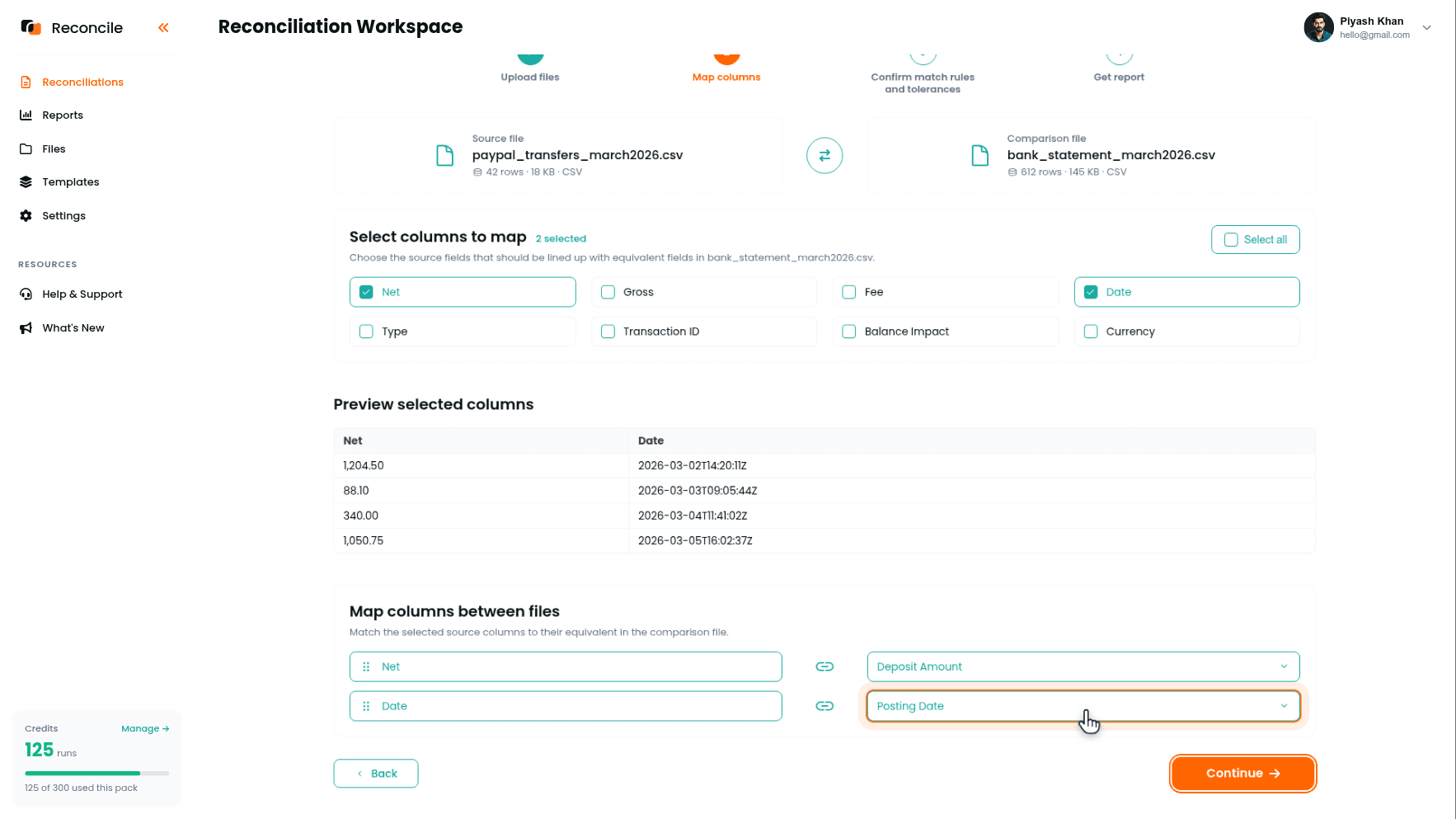
On the Map columns step, select the columns that matter for this pass, then pair each with its equivalent in the bank statement.
PayPal's Net column maps to the bank's deposit amount. The Net column is the amount after PayPal deducted its fees. The bank only ever receives the net figure. Mapping PayPal's Gross column to the bank's deposit amount guarantees a mismatch on every row because the fee was already subtracted before the transfer left PayPal.
PayPal's Date column maps to the bank's transaction or posting date. These will often differ by several days because PayPal records when it initiated the transfer and the bank records when the deposit posted. The date tolerance in the next step absorbs that.
Leave PayPal's description and the bank's description unselected. The bank's deposit description is a generic PayPal reference; it carries no transfer-specific content and comparing it flags differences with no operational meaning.
Step 4: Confirm Match Rules and Tolerances for the Transfer Pass
Reconcile suggests the matching column under We suggest matching on:, with its reasons listed under Why this match?. If the bank statement carries a PayPal transfer reference, that pair is the strongest choice: confirm it. If it does not, choose Net → deposit amount as the matching column under Or choose a different column. Transfer amounts are exact to the cent and a monthly transfer file has few rows, so the amount is a reliable identifier at this level, and if two transfers in the period happen to share an amount, the report's Duplicates tab surfaces them for direct review rather than letting them pair silently. Check the Preview match key values table to see the sample values lining up before continuing.
Then set the tolerances under Confirm comparison rules and tolerances:
- Date: a date/time field, tolerance within 3 to 5 days. That covers the typical window between PayPal initiating a transfer and the bank posting the deposit. Do not set it wider than needed.
- If matching on a transfer reference, compare Net as a numeric field with a tolerance of zero. A gap between what PayPal recorded and what the bank received is worth investigating, not absorbing. If a currency conversion is involved, allow no more than one unit of the settlement currency.
Click Get report.
Step 5: Review the Bank Pass Report
The report sorts every transfer and every deposit into Matched rows, Mismatched rows, Duplicates, Missing in source, and Missing in comparison.
A Matched row confirms that a specific PayPal transfer arrived at the bank for the correct amount within the date window you set.
A Missing in comparison row is a transfer PayPal recorded with no corresponding deposit in the bank statement. Check the bank statement date range first. Then check PayPal's transfer status: a transfer showing as In Transit on PayPal's side has not posted yet and is not an error.
A Missing in source row is a bank deposit with no corresponding PayPal transfer in the export. Check whether it came from a different payment source, a manual transfer, or a PayPal refund deposit rather than a standard payout.
A Mismatched row means the two sides matched on the key but disagree on a compared column beyond its tolerance. The report shows both values side by side with the difference highlighted; a date gap wider than the settlement window is worth a direct lookup in PayPal's transfer history.
Once the bank pass is clean, or its open exceptions are documented, move to the second pass.
Step 6: Upload the Transaction Export and Internal Records
Start a second reconciliation. Put the filtered PayPal transaction export, the Payment Received and Refund rows, in the Source file slot, and the internal sales record or ledger in the Comparison file slot.
Confirm two things on upload. First, that both files cover the same period. Second, that the internal records include the reference field, order ID or invoice number, that also appears in PayPal's Invoice Number or Reference Txn ID column. That shared reference is the matching column for this pass. If the checkout flow never wrote it into PayPal, fix the export at the source, most order systems can include the PayPal transaction ID in their own export, rather than trying to match on fields that repeat.
Step 7: Map the Transaction-Level Columns
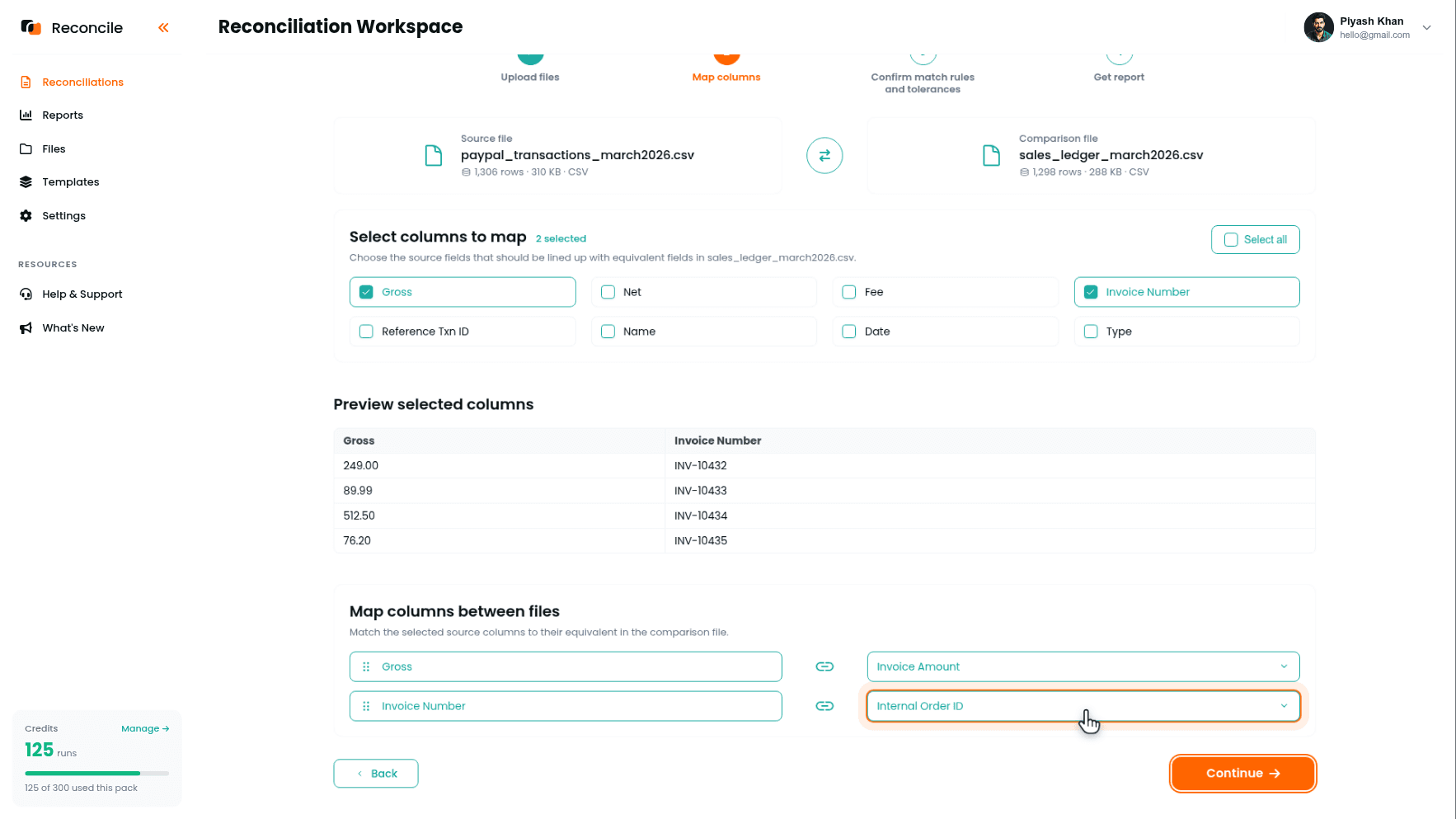
Map PayPal's Gross column to the order or invoice amount in the internal records. At the transaction level, before fees, PayPal's gross charge should equal what was billed on the order. Mapping Net to the order amount embeds PayPal's fee as a mismatch on every row, which is not a discrepancy worth resolving.
Map PayPal's Invoice Number or Reference Txn ID column to the corresponding reference field in the internal records.
Map PayPal's Date only if the internal record captures a payment date rather than only an order date: a payment date will be close to PayPal's transaction date, while an order date can precede payment by days or more.
Leave three things unselected. The Fee column: the internal system does not track PayPal's per-transaction fee as a line item, so it can never agree with anything. The Net column: the difference between net and the order amount is always exactly the fee, which is how PayPal calculates net, not a discrepancy. Name and description fields: customer names differ between systems in ways that are consistent but not character-identical, capitalization, middle initials, company name versus personal name, and comparing them generates exceptions that are not real while burying the ones that are.
Step 8: Confirm Match Rules and Tolerances for the Transaction Pass
Confirm Invoice Number → order ID as the matching column when Reconcile suggests it, or select it under Or choose a different column. If the internal system writes its order IDs into PayPal's Invoice Number field at checkout, that is the cleanest possible matching column. The Preview match key values table shows the IDs pairing up across the files before you commit.
Tolerances for this pass:
- Gross amount: numeric, zero tolerance for same-currency transactions. The gross charge should equal the order amount exactly. If currency conversion is possible at the transaction level, allow a small rounding tolerance and calibrate it against a few actual conversion records.
- Date, if compared: one to two days covers the gap between PayPal's payment date and the internal system's recorded date. If the internal system records fulfillment dates rather than payment dates, check the gap against a sample before setting the tolerance.
Click Get report.
Step 9: Review the Transaction Pass Report
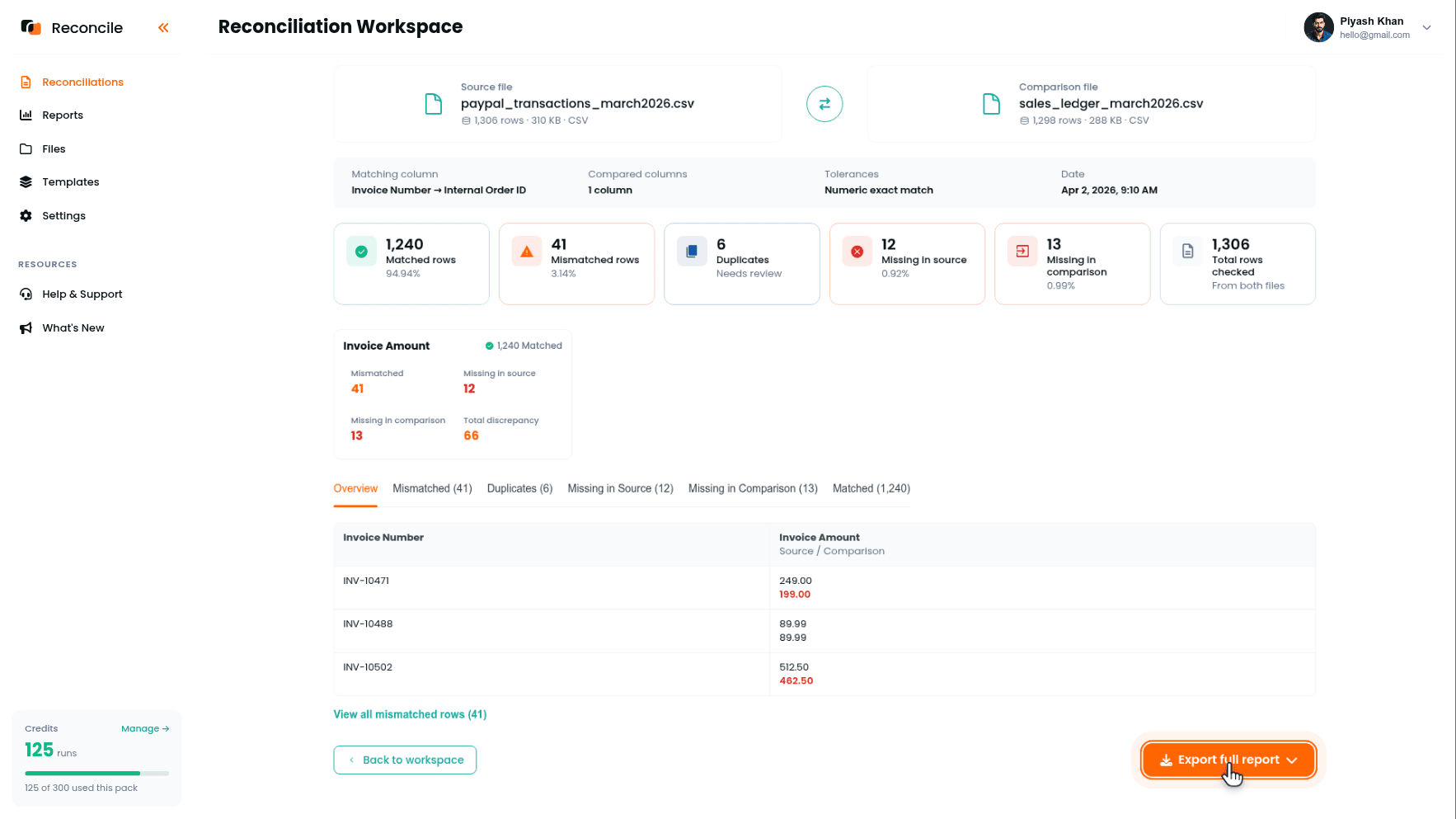
A Matched row confirms that a PayPal payment corresponds to a record in the internal system and that the amounts agree within tolerance.
A Missing in comparison row is a PayPal payment with no matching order. Common causes: a payment made through PayPal.me or a direct payment link that did not populate the Invoice Number field, a test transaction, a payment from a different account period, or a refund that did not carry the original invoice reference. Look up the transaction in PayPal's activity view directly to identify the counterpart.
A Missing in source row is an internal order with no corresponding PayPal payment. Check whether the payment came through a different processor, was paid offline, or was cancelled before payment cleared.
A Duplicates row is the same reference appearing more than once, typically a refund row carrying the original transaction's reference. The tab isolates them so they explain themselves instead of polluting the mismatch list.
A Mismatched row means the reference matched but the amount or date did not. The most common causes:
- A partial refund reduced the net receipt without a corresponding adjustment on the order record.
- A chargeback or dispute reversal appeared as a separate row in PayPal rather than a modification to the original transaction.
- A currency conversion changed the amount between what PayPal received and what it recorded in the settlement currency.
- A pricing discrepancy where the amount charged at PayPal differs from the amount on the order record, worth confirming whether a discount, coupon, or manual adjustment applied at checkout but was not reflected in the internal system.
Step 10: Export Both Reports
Both reports finish marked Ready to export. Use Export full report on each, which produces a PDF summary and an Excel workbook per pass, with every row sorted into matched, mismatched, duplicates, and both missing sheets. Record the explanation for every exception against its row in the workbook as you resolve them: resolved, needs correction, or still open.
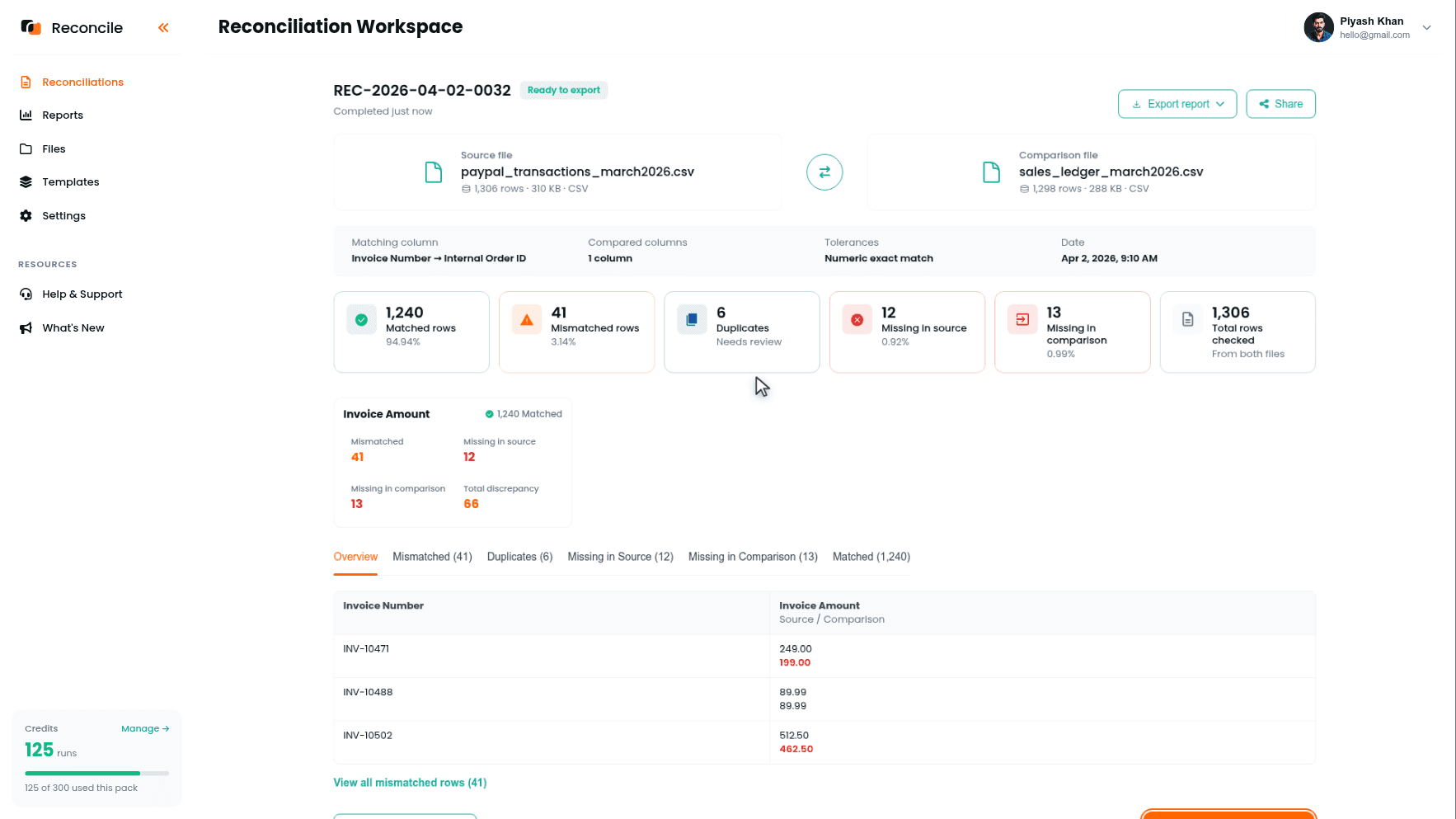
Together the two reports answer two distinct questions: did the money PayPal sent arrive at the bank correctly, and do PayPal's transaction records match the internal account of what was sold and refunded. A single combined report would blur which level of the process each remaining exception came from. Keeping them separate preserves that distinction for whoever reviews them next.
Key takeaways
- Map PayPal's Net to the bank deposit amount for the bank pass. Gross includes the fee; the bank only receives Net. Mapping the wrong column guarantees a mismatch on every row.
- Filter the PayPal export by transaction type before uploading. Fee rows, conversion rows, and transfer rows each have no counterpart in an external file. Leaving them in produces Missing rows that are not errors.
- Apply a currency filter at download time if the account holds multiple currencies. Mixed-currency exports compared against a single-currency bank statement produce false mismatches on every foreign-currency row.
- PayPal records the initiation date; the bank records the arrival date. A date tolerance of three to five days on the bank pass accounts for normal settlement timing.
- Two passes, two different questions, two different matching columns. The bank pass matches on a transfer reference or the net amount. The transaction pass matches on invoice number or order ID.
- Mismatches at the transaction level are almost always a partial refund, a chargeback, a currency conversion, or a pricing adjustment that updated one system but not the other. Each has a distinct cause, and the exported report with an explanation on every row is the evidence the reconciliation was actually completed.



