


Before you start
For each client on the roster this period:
- The two files that need to be compared, pulled fresh for the period: a bank statement or export, and the ledger, invoice list, or processor report that applies to that specific client.
- A shared column that identifies the same transaction in both of that client's files. This looks different client to client: an invoice number for one, a check number for another. Knowing which applies to each client before starting means the matching column decision isn't a guess made cold, client by client, under deadline.
- A way to keep each client's files physically separate before upload. Each reconciliation takes one Source file and one Comparison file; if files from several clients land in one undifferentiated folder, the wrong bank statement can end up in the Source slot against the wrong client's ledger before the mapping screen is even reached.
Step 1: Pull Each Client's Files at the Source, One Client at a Time
Export the bank file and the ledger or processor file directly from source, for the client currently in front of you, rather than batch-downloading every client's bank export into one folder to sort out later.
Two clients banking with the same institution will often produce files with identical column layouts and identical generic names, transactions.csv, export.csv, sitting next to each other in a downloads folder. Nothing about the file itself stops one from being uploaded against the wrong client's ledger: the columns will still read cleanly, mapping may even succeed on the wrong pair, and the mistake won't surface until amounts and dates stop lining up, or, worse, happen to align on a handful of rows and read as a light reconciliation with an unusual number of exceptions. Rename each file with the client's name and period immediately after export, before it has a chance to sit unlabeled next to five others that look the same.
Step 2: Upload the Pair for This Client
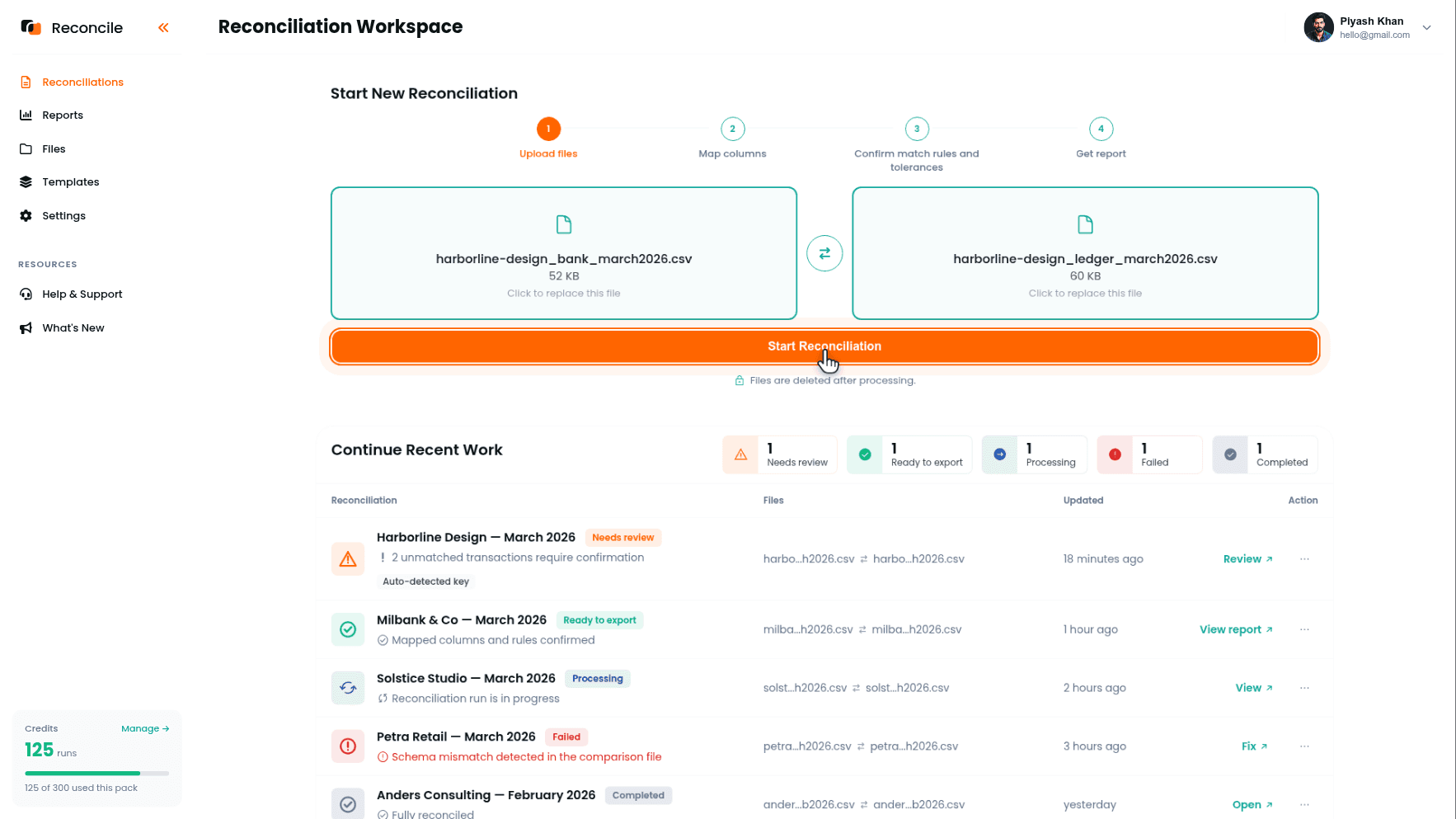
Start a new reconciliation for the client currently open. Put the bank file in the Source file slot, the main file to check, and the ledger or processor file in the Comparison file slot, the file to match against, then click Start Reconciliation. A QuickBooks Online bank register's Payee and Memo columns, a Xero export's Contact and Description, a manually kept spreadsheet's single Vendor column: none of these need to be renamed or restructured to match each other before upload, and none need to match the column layout of the client reconciled an hour earlier. Reconcile reads whatever columns the file actually has; it doesn't know or care which accounting system, if any, produced it.
Both file cards show the file name and row count through every step that follows, which is the standing confirmation that the right client's pair is loaded. Files are deleted after processing, which is exactly what you want to be able to tell a client whose bank data just passed through your hands.
Step 3: Map This Client's Columns
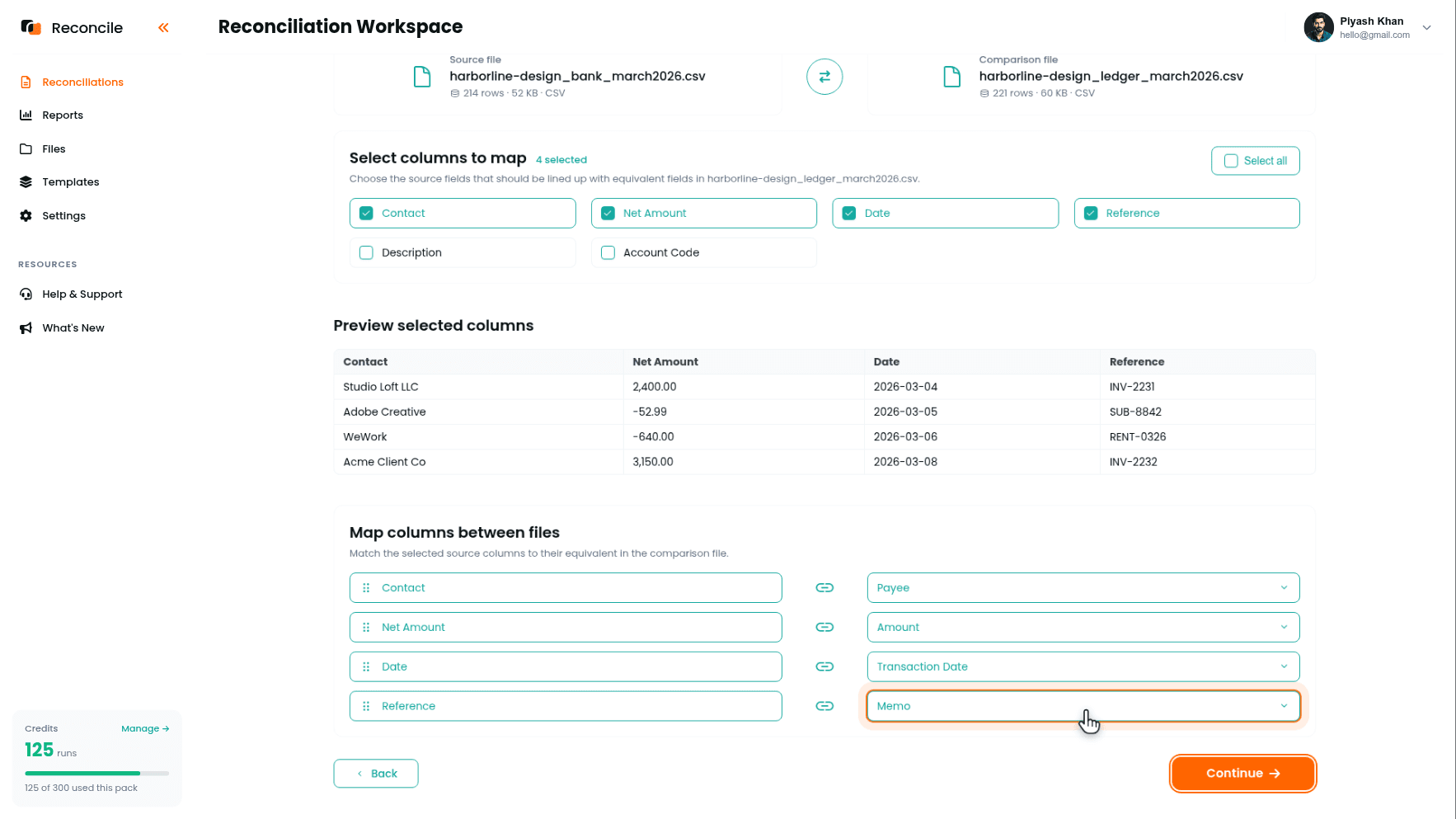
Mapping is specific to the pair currently open, not a template carried over from the last client. On the Map columns step, tick this client's relevant columns in the Select columns to map grid, confirm them in the Preview selected columns table, and pair each with its equivalent in the comparison file under Map columns between files. A pairing that was correct for one client, Xero's Net Amount to a bank's Amount, means nothing for the next client's file, whose invoicing export might separate a Subtotal column from a Total column where the previous client had one combined figure.
Watch for pretax versus total amount columns in particular: mapping the wrong one produces a mismatch on nearly every matched row, one that looks like an unexplained fee until it's noticed that the gap is the same percentage every time, which is the signature of a mapping error, not a real one. The preview table exists for exactly this check: the sample rows show whether the column you ticked holds the figure you think it does.
Step 4: Confirm the Matching Column for This Client
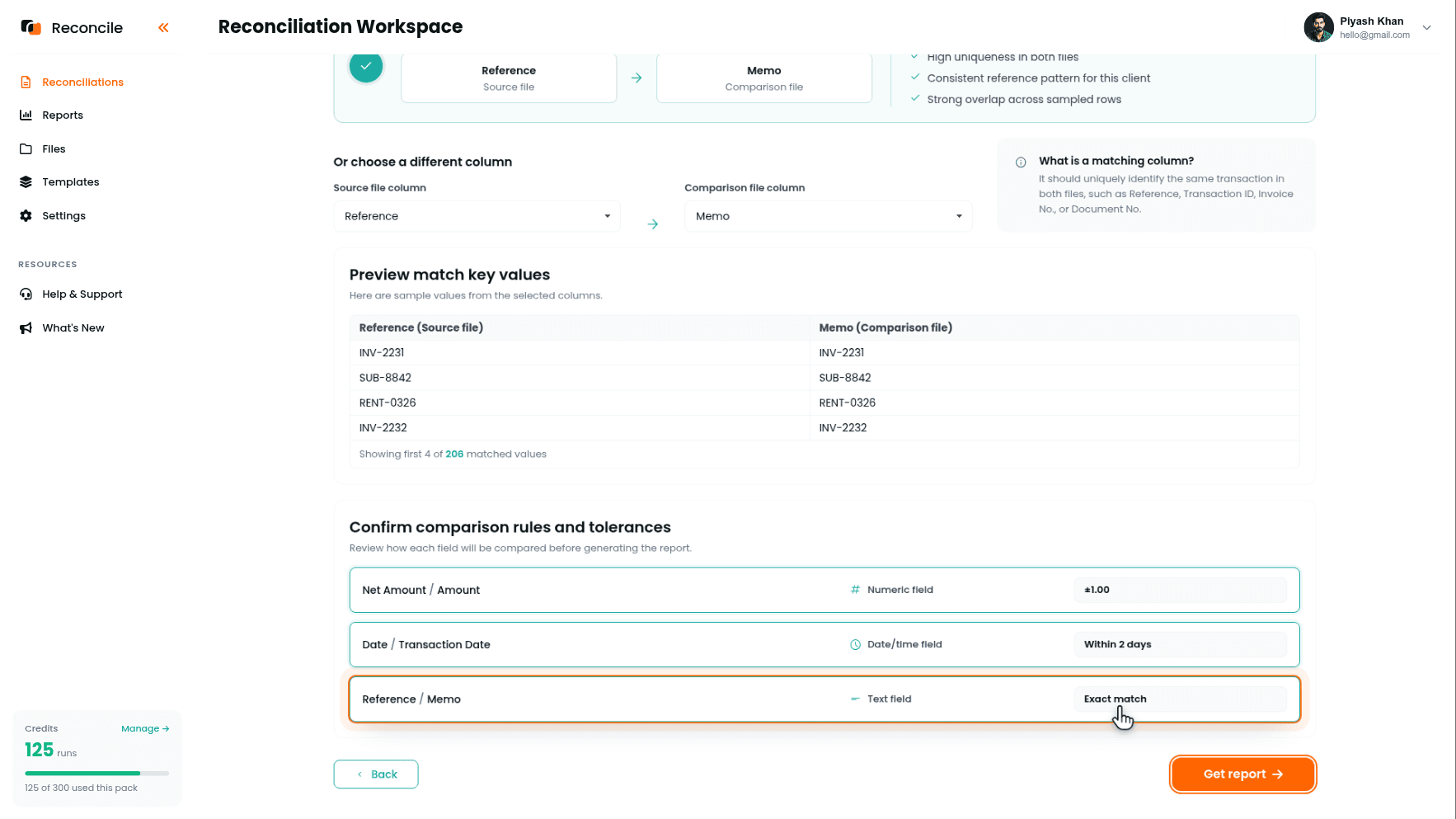
Reconcile suggests the matching column under We suggest matching on:, with its reasons under Why this match?, high uniqueness, a consistent reference pattern, strong overlap across sampled rows, computed from the pair of files open right now, not from anything reconciled before. That per-run suggestion is the guard against exactly the habit this guide is about: it is recalculated for this client's data every time.
A client who invoices through project management software usually has invoice numbers on both sides. A client still writing physical checks has check numbers. Confirm the suggestion, or pick the right pair under Or choose a different column, and glance at Preview match key values to see the values actually lining up for this client's files before continuing.
Step 5: Confirm This Client's Rules and Tolerances
Under Confirm comparison rules and tolerances, each compared column shows its type and tolerance: date/time within a day, numeric within a small amount, text exact. Keep or adjust each one for this client's transaction pattern, not the previous client's. A retail client with frequent small card sales and processor-level rounding needs a wider amount tolerance than a consulting client whose few monthly invoices settle for the exact amount billed. Leaving the previous client's tolerance in your head, because this is the fifth client reconciled that afternoon, is how a real discrepancy in a low-volume client's file gets absorbed, or how a genuine problem in a high-volume client's file gets buried.
Leave description and memo columns out of the comparison for a client running card sales through a processor: the processor's auto-generated description won't resemble what the client typed into their own ledger for the same transaction, and comparing it generates exceptions that aren't real.
Click Get report.
Step 6: Review This Client's Report
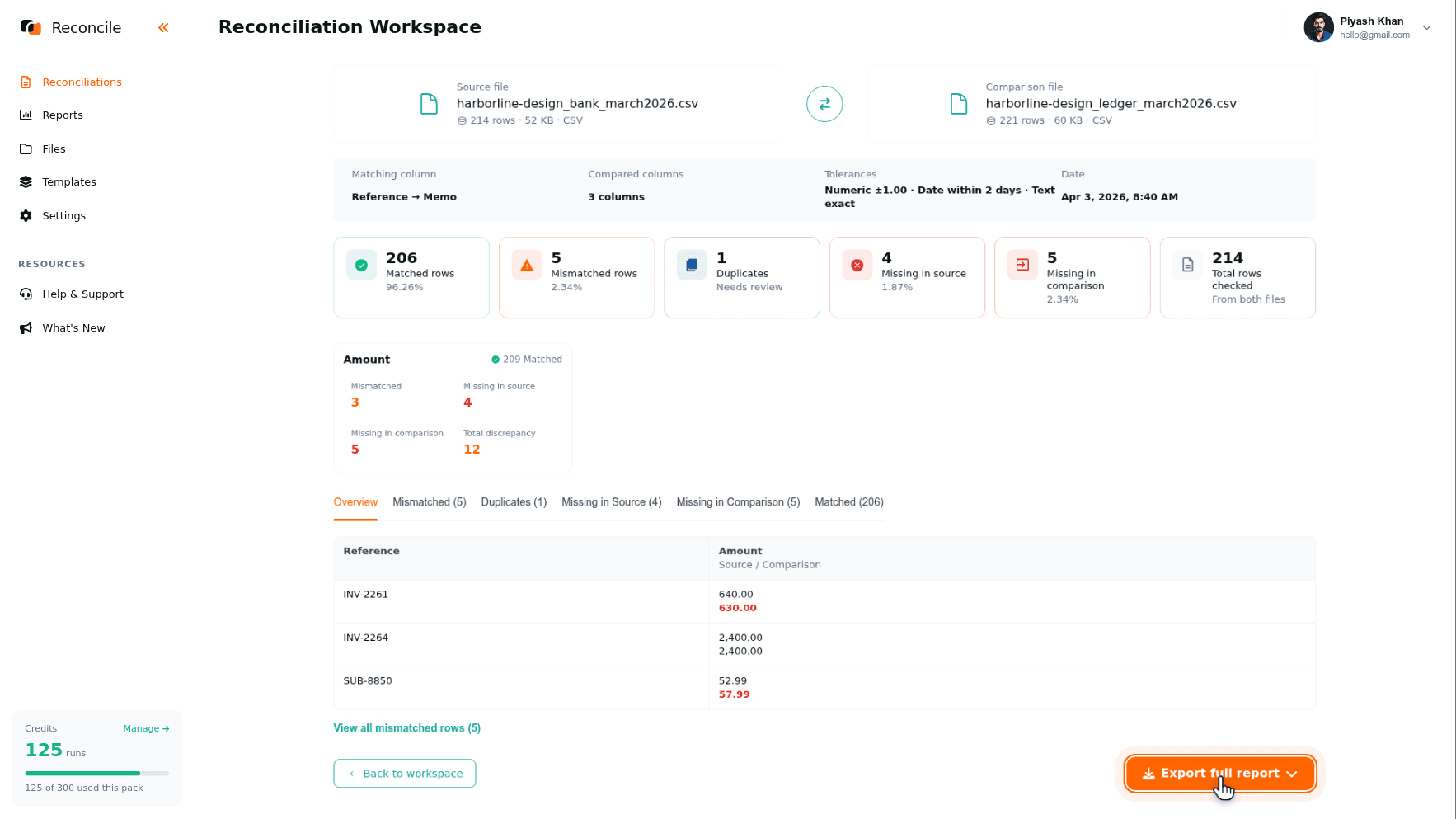
The report sorts every row into Matched rows, Mismatched rows, Duplicates, Missing in source, and Missing in comparison, with a per-column breakdown showing whether disagreements concentrate in amounts, dates, or text. Start with the Mismatched tab: it shows both sides' values with the difference highlighted, which points to a specific, findable cause. Missing rows can mean several different things and take longer to run down.
Recurring items are common for the same client month to month: the same $2.99 platform fee landing in Missing in comparison, the same bundled deposit structure. Once explained for that client, note it in that client's exported report so the same figure doesn't need re-investigating every month.
Don't carry an explanation across clients on the strength of a familiar-looking number. A $2.99 row explained as a payment processor fee for one client might be a flat monthly bank service charge for a different client whose bank happens to charge the same amount. Same figure, unrelated cause, because the two clients bank and invoice differently.
Step 7: Export This Client's Report Before Opening the Next Client's Files
Click Export full report for the client currently open. This produces a PDF summary and an Excel workbook with every row sorted into its category. Record the explanation for each exception against its row in the workbook, and store both files alongside that client's own source files, in a folder that belongs to that client and no other. Do this before uploading the next client's pair.
Exporting first closes out the mapping, matching column, and tolerance decisions made for this client. The next client's reconciliation starts as its own clean run, and the finished one stays in the workspace under its own name and status if anyone needs to reopen it.
Key takeaways
- The recurring risk in multi-client reconciliation isn't a hard-to-match transaction, it's a mapping, matching column, or tolerance decided for one client carrying forward into a client it doesn't fit. Reconcile's one-pair-per-run structure, with the matching column re-suggested from each pair's actual data, is the guard rail.
- No two clients' files look alike, and none of them need renaming or restructuring before upload: a QBO export, a Xero export, and a manual spreadsheet ledger all upload as they are.
- Mapping, the matching column, and tolerances are separate decisions, made fresh for each client's pair on the Map columns and Confirm match rules and tolerances steps, not copied forward from the client reconciled before.
- Two clients banking with the same institution can produce identically structured, identically named files. Rename each export with the client's name and period immediately, and confirm the file cards before mapping.
- The same dollar figure can have a different cause in different clients' files. Explain exceptions per client, in that client's exported report, not by pattern-matching against what a similar number meant somewhere else.
- Export and file each client's report before opening the next client's pair. Files are deleted after processing, which is also the answer when a client asks where their bank data went.



