


Before you start
- The full processor export for the audit period, not filtered down to only successful or completed transactions. Failed, refunded, and disputed rows are needed to explain gaps later.
- An internal source of truth covering the same period: a sales ledger, an invoice export, or an order list.
- A shared identifier column present in both files: the order or invoice number written into the processor's reference field at checkout, or the processor's charge ID stored back in the order system. Most order systems record the charge ID against the order; if yours does, export it. This column is the matching column, and having it is what makes the audit row-by-row instead of approximate.
Step 1: Pull the Full Export, and Reassemble It if the Processor Split It
Pull the export directly from the processor's dashboard for the entire audit period, not a pre-filtered view of successful charges only.
Check whether the processor split the period across multiple files before uploading anything. PayPal's activity download breaks into separate monthly files once a requested range gets long. Adyen issues a transaction report and a settlement detail report as two distinct files rather than one. If the audit period spans more than one export with the same columns, stack them into a single file first. Each reconciliation compares one Source file against one Comparison file, so splitting the same source across several passes means the matching check only ever sees a fraction of the period at a time, and rows that would have matched across the split land in the Missing categories instead.
This is a preparation step, not a cleaning step. Header casing, column order, and date formatting differences do not need to be fixed before upload. A truncated date range does.
Step 2: Upload the Pair and Map the Columns
Start a new reconciliation. Put the processor export in the Source file slot, the claim being audited, and the internal source of truth in the Comparison file slot, the record it is being checked against. Click Start Reconciliation. Files are deleted after processing.
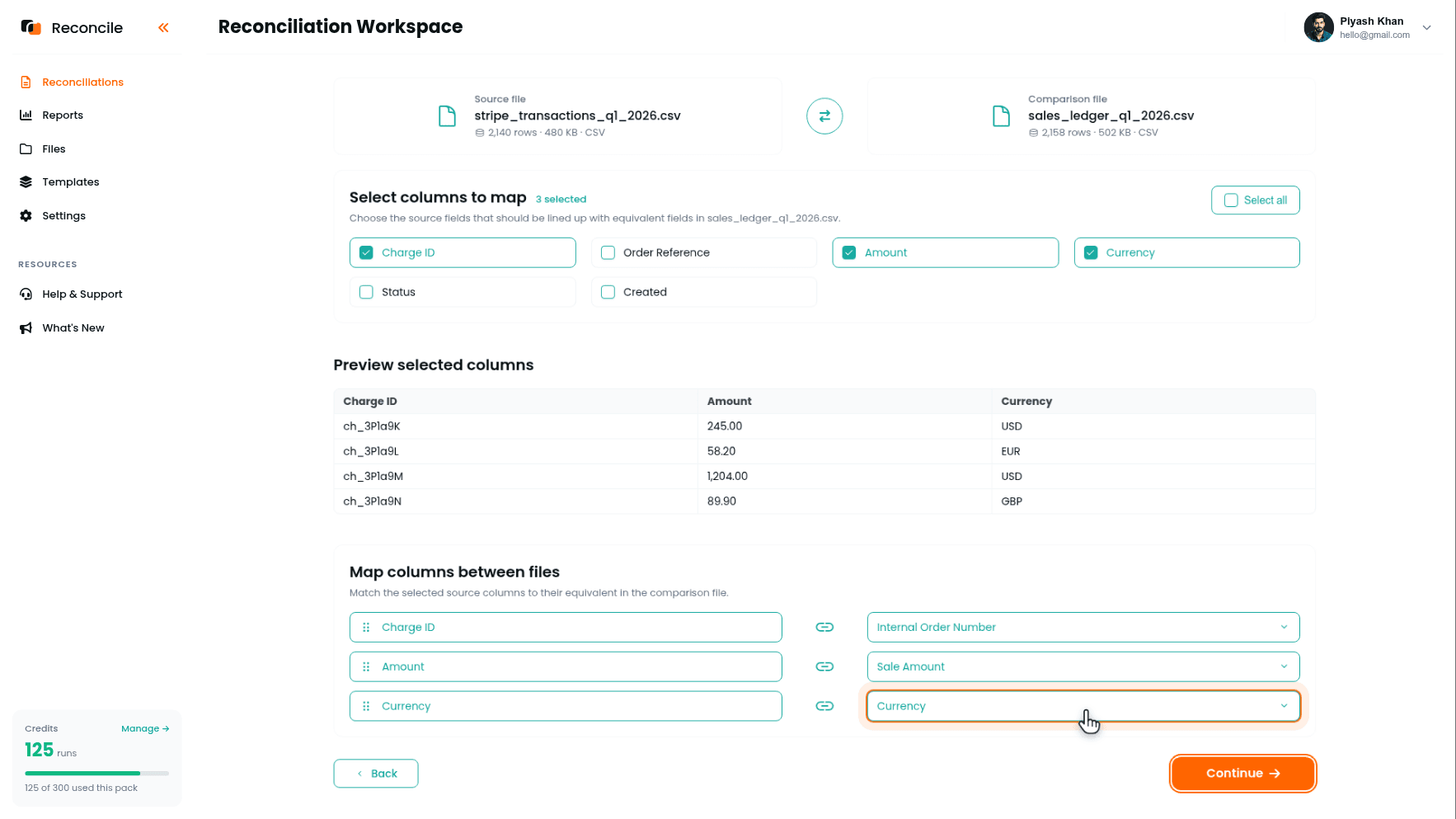
On the Map columns step, tick the columns that need to agree in the Select columns to map grid: the charge ID or order reference, the amount, and the currency code if the account takes more than one currency. Confirm each in the Preview selected columns table, then pair them under Map columns between files: the processor's reference to the internal order number, the processor's amount to the ledger's sale amount, currency to currency.
Multi-currency accounts introduce a specific pitfall here. The processor shows the amount in the currency the customer actually paid in, not the account's settlement currency: a European customer's charge shows 45.00 with a currency code of EUR, while the internal ledger might already record everything converted to USD at the price quoted on the invoice. Comparing the raw amount columns without also mapping currency produces a wall of mismatches that have nothing to do with a real reconciliation problem and everything to do with an unaccounted-for conversion. Map the currency column even when it feels unnecessary, so a currency mismatch shows up as its own highlighted difference instead of getting buried in amount mismatches.
Leave the status column unticked. The internal ledger does not track payment state in a comparable way, so status can never agree, and it earns its keep later, in the processor's dashboard, when explaining gaps.
Step 3: Confirm the Matching Column
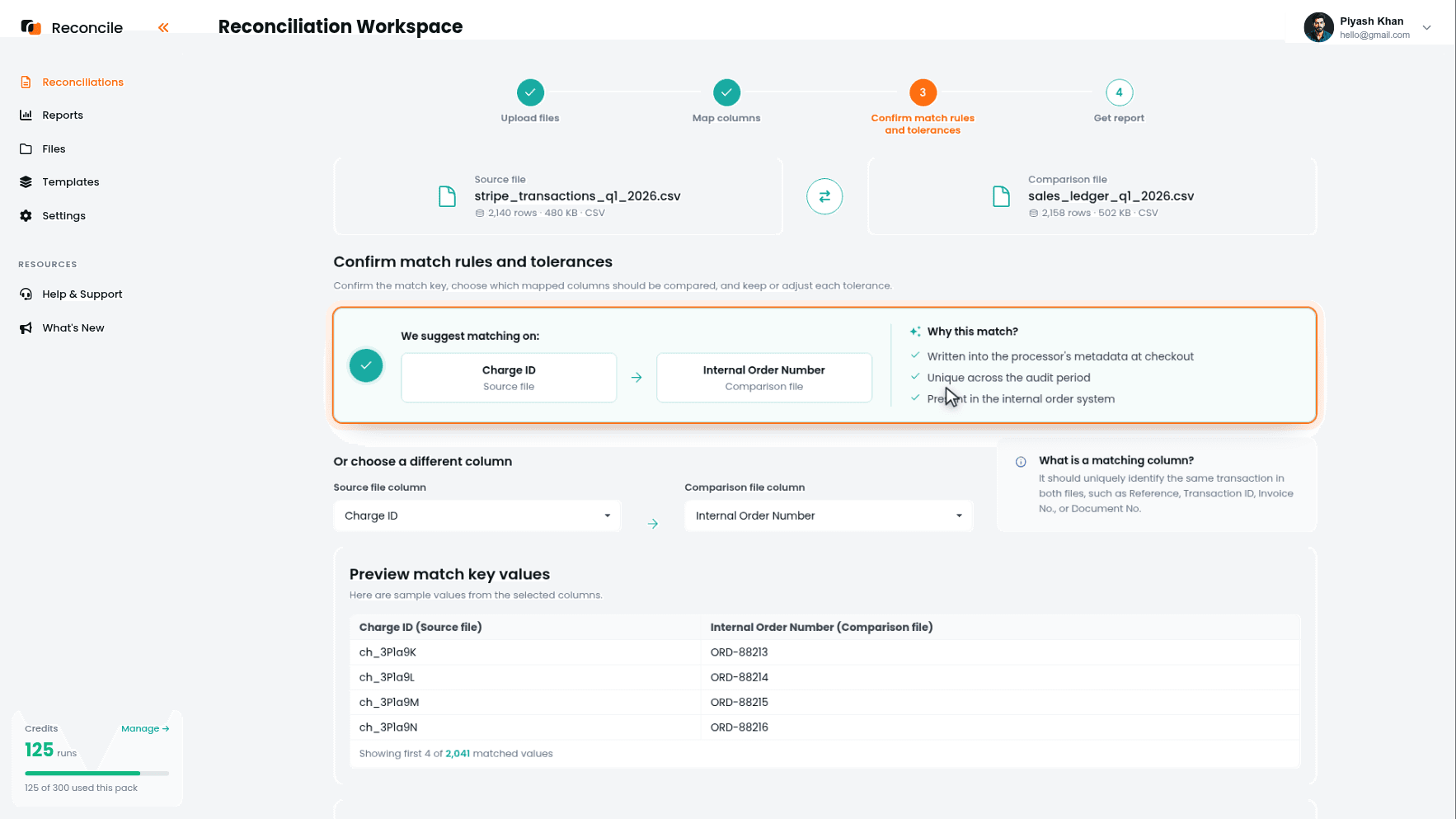
Reconcile suggests the matching column under We suggest matching on:, with its reasons under Why this match?: high uniqueness in both files, a consistent reference pattern, strong overlap across sampled rows. For this audit it should be the shared reference, the order number the checkout wrote into the processor's metadata, or the charge ID the order system stored. Confirm it, and check the Preview match key values table, which shows sample values from both columns side by side and how many matched across the files. If the overlap in that preview is poor, the reference was not populated consistently at the source, and that is worth fixing in the checkout or export before auditing, because a matching column that only covers half the rows produces an exception list that is mostly noise.
Step 4: Set the Tolerances
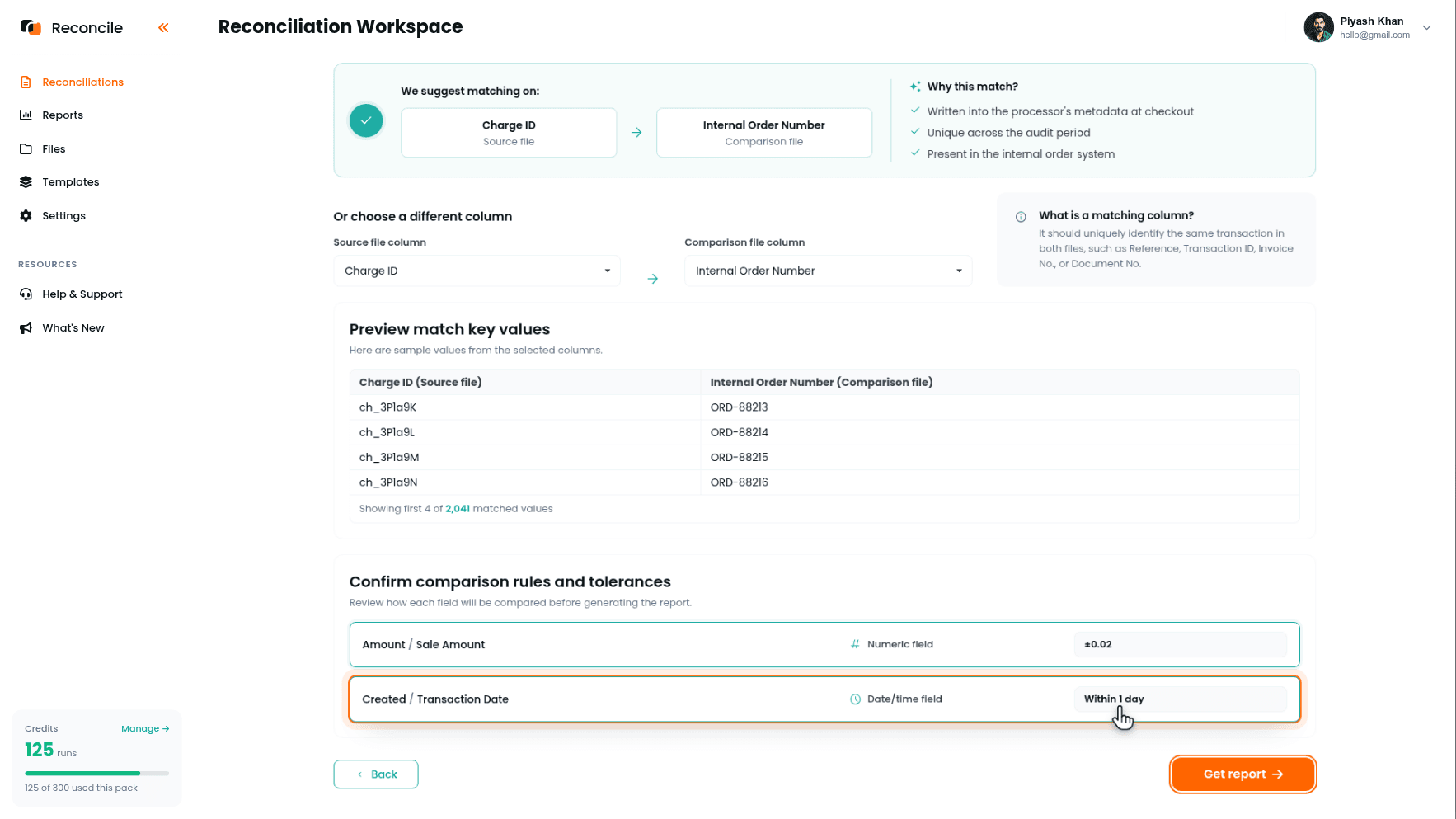
Under Confirm comparison rules and tolerances, each compared pair shows its detected type and tolerance.
Set the amount tolerance small, on the order of a cent or two, wide enough to absorb currency rounding but tight enough to still surface a partial refund the ledger never recorded. The amount being compared should be the gross transaction amount, not a net-of-fee figure: the internal ledger recorded the price the customer was charged, not what the processor kept after its own fee. A wide amount tolerance at this stage will hide exactly the discrepancies this audit exists to find.
Compare date only if the ledger records an actual transaction date rather than an invoice date, and give it a tolerance of a day or two rather than an exact match: a charge that clears late in the evening can post to the ledger the next calendar day without anything having gone wrong. An invoice date can legitimately predate the charge by days or weeks, and comparing it directly against the processor's charge date manufactures mismatches that describe normal invoicing lag, not a payment problem.
Leave currency at exact match: two files disagreeing on currency is always worth seeing.
Click Get report.
Step 5: Read the Report by Category
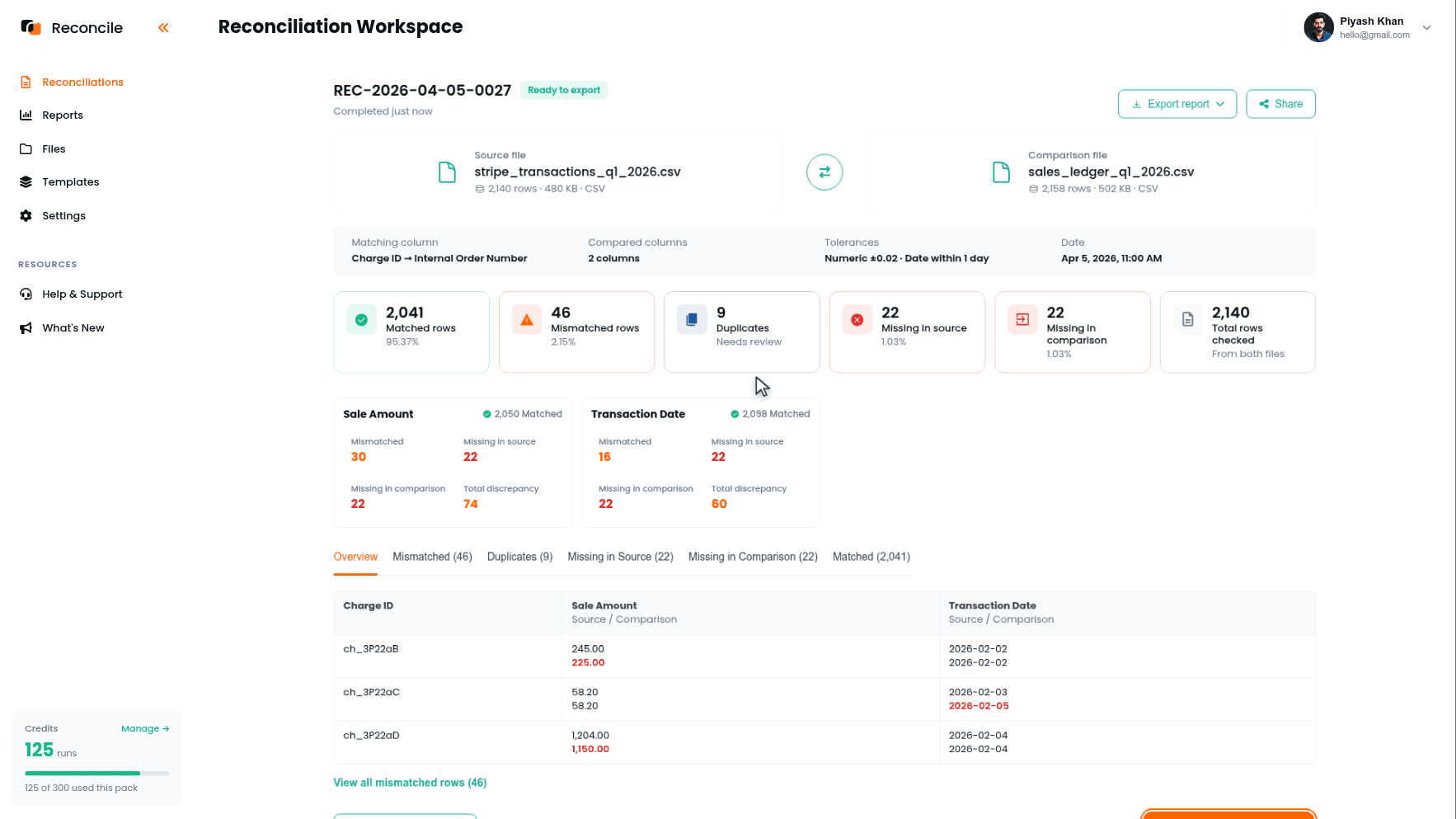
The report sorts every row from both files into five categories, and each one answers a different audit question.
Matched rows mean the charge exists in the processor file for the reference and amount the ledger expected.
Missing in comparison rows are charges the processor recorded with no corresponding ledger entry. This usually points to a test transaction left in a live export, a subscription renewal the billing system auto-charged but never logged, or a checkout page that collects payment without writing back to the ledger.
Missing in source rows are expected sales with no matching processor charge. This usually points to an order paid through a different processor or payment method, a charge that failed and was never retried, or an invoice generated for an order the customer never actually completed payment on.
Duplicates are the same reference appearing more than once in a file, and on the processor side that is the retried-webhook double charge this audit exists to catch, isolated in its own tab instead of buried in a list.
Mismatched rows matched on the reference but disagree on amount, date, or currency beyond tolerance, shown side by side with the differing value highlighted.
Step 6: Explain Each Exception Using the Processor's Status
The status field, deliberately left out of the comparison, is what explains most of what the report surfaced. Look each exception up in the processor's dashboard:
A refunded status usually explains an amount mismatch: the refund reduces the net figure or appears as a separate negative row, while the ledger still shows the original full sale. A disputed or charged-back status usually explains a Missing in comparison row: funds that left the account after a chargeback will not match anything on the ledger unless a write-off entry was recorded separately. A pending or processing status usually explains a timing gap, not a real problem: the charge exists but has not finished settling, and will resolve to matched on a later pull. A failed or declined status usually explains a Missing in source row: the sale was recorded as expected revenue, but the processor never actually captured payment.
Once a shape like "refund without a ledger adjustment" has been explained once, it is recognizable the next time it appears in the same form.
Step 7: Export the Clean Report
The report is marked Ready to export. Click Export full report, which produces a PDF summary of the audit and an Excel workbook with every row sorted into its category. Record the explanation for each exception against its row in the workbook: explained by refund, explained by dispute, explained by timing, or needs investigation. Clean does not mean zero exceptions. It means zero rows without an explanation attached to them.
Key takeaways
- Auditing a processor CSV checks the processor's own transaction record against what you expected to happen. It is a different question from whether the resulting payout landed in the bank for the correct net amount.
- Processors report amounts in the currency the customer paid, not necessarily the account's settlement currency. Map the currency column alongside the amount column, or currency conversion will read as a wall of false mismatches.
- The matching column is the shared reference: the order number written into the processor's metadata, or the charge ID the order system stored. The Preview match key values table shows immediately whether it was populated consistently, before any report is run.
- Compare gross amount against the ledger, not net of fees, and leave status out of the mapped columns; it is more useful for explaining gaps afterward than for checking agreement upfront.
- The report's categories do the sorting for you: retried double charges land in Duplicates, unlogged charges in Missing in comparison, uncaptured sales in Missing in source, refund-shaped gaps in Mismatched. Explain by pattern rather than investigating each row from scratch.
- A finished report is not one with zero exceptions. It is one where every mismatched, duplicate, and missing row in the export has an explanation attached to it.



