


Before you start
Three things are needed before starting recovery:
- The original source files used in the first attempt, plus any corrected or reissued version of any of them (an amended bank statement, a reissued payment processor report) if one exists.
- The control total the reconciliation is supposed to tie to: the general ledger balance, the bank's ending balance, or whatever figure defines a closed reconciliation for this account.
- Last period's exported reconciliation report, if items carried forward, so this month's genuinely new exceptions can be told apart from repeat ones.
Step 1: Identify Which Kind of Break This Is
A month-end reconciliation breaks in one of three ways, and each needs a different fix. Match the symptom before touching anything else.
- Total-level break: matched plus mismatched rows do not add up to the control total. Almost always a scope problem, a file, a filter, or a date range that no longer lines up with the number being targeted.
- Item-level break: the totals are close, but a stubborn set of exceptions will not resolve no matter how they are investigated. Usually a matching column or tolerance problem, not a data problem.
- Stalled break: the reconciliation was started, partially worked, and abandoned. Picking it back up means figuring out what was already checked before checking it again.
If the exported report from the first attempt is still available, open it and compare the category counts against what the control total implies. A total-level break shows up immediately: the dollars represented by matched plus mismatched rows will not equal the control total, no matter how the exceptions get explained.
Step 2: Rule Out a Scope Mismatch Before Anything Else
If the break is total-level, check scope first. Re-pull both files fresh from source rather than trusting copies already sitting in a folder, and confirm three things: both cover the same period, neither was filtered before export, and the right file is in the right slot, the file being checked in Source file, the file being checked against in Comparison file.
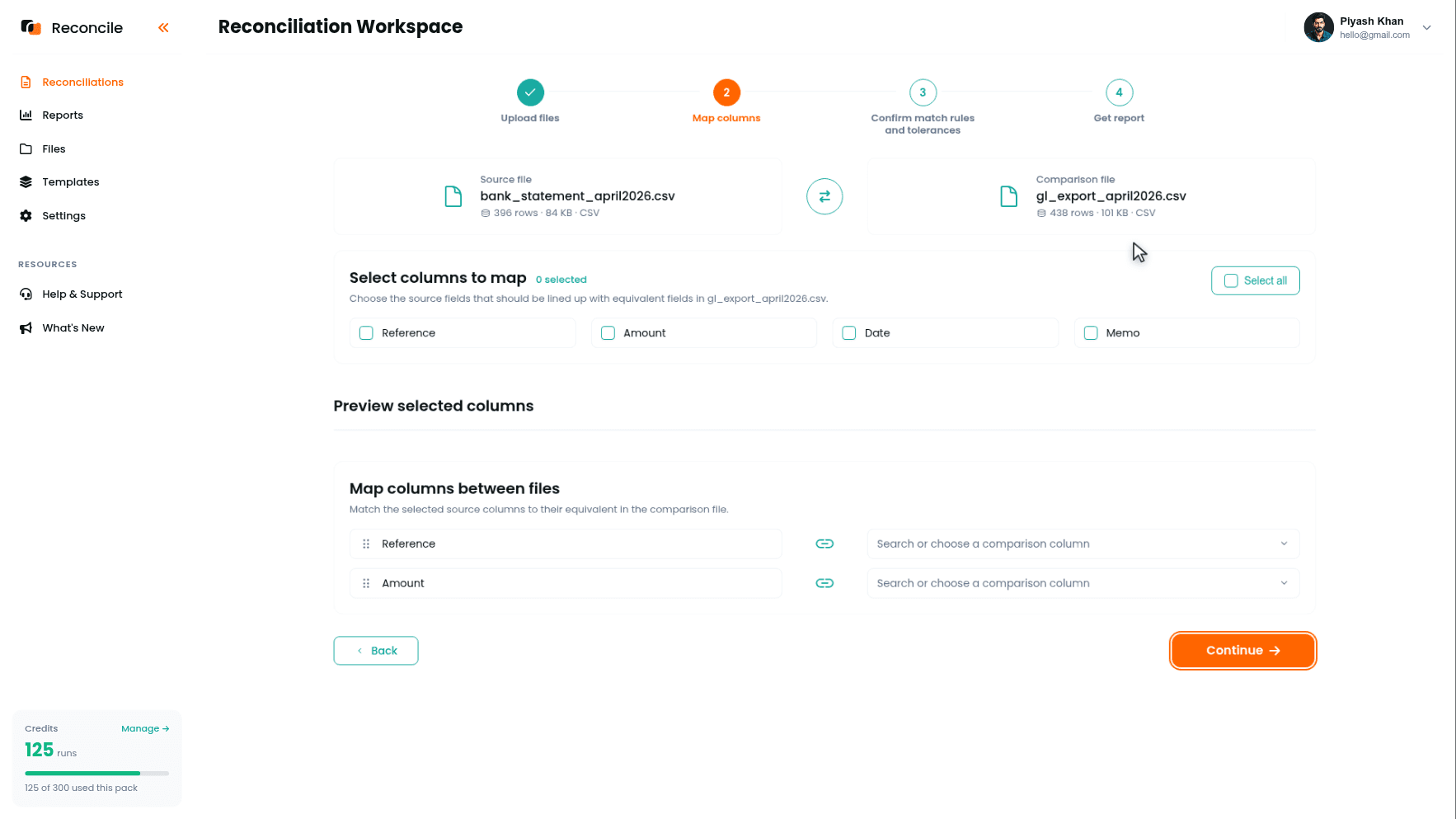
The file cards confirm scope the moment the pair is uploaded: each shows its row count before any mapping happens. If the ledger export should contain 412 transactions for the month and the card shows 438, the extra 26 rows are the first thing to explain, before a single exception gets investigated. A ledger export pulled with an extra week attached produces a total off by a specific, explainable amount, not a scattered set of mismatches.
Step 3: Check for a Reissued or Corrected Source File
Sometimes the numbers were right on the first pass, and then the bank issued a corrected statement, or the payment processor reissued a report after adjusting a fee schedule retroactively, and half the reconciliation was already worked against the old version. Reconcile compares the files it is given; it does not pull from a live bank feed, so a reissued statement enters the picture only when you upload it.
If a corrected file exists, start a fresh run with the corrected version in place of the old one and get a new report. Do not patch the old exported report by hand to account for the correction: hand-edited rows no longer trace back to any real file, and the report stops being an accurate record of what was actually compared. A fresh run costs minutes; a report that cannot be trusted costs the close.
Step 4: Re-Verify the Matching Column Still Fits This Period's Data
A matching column that worked cleanly last month can fail this month without anything being wrong with the files themselves. A batch of manual journal entries with no reference number, or a new vendor whose invoices do not carry the ID format the rest of the ledger uses, breaks a matching column that was previously reliable.
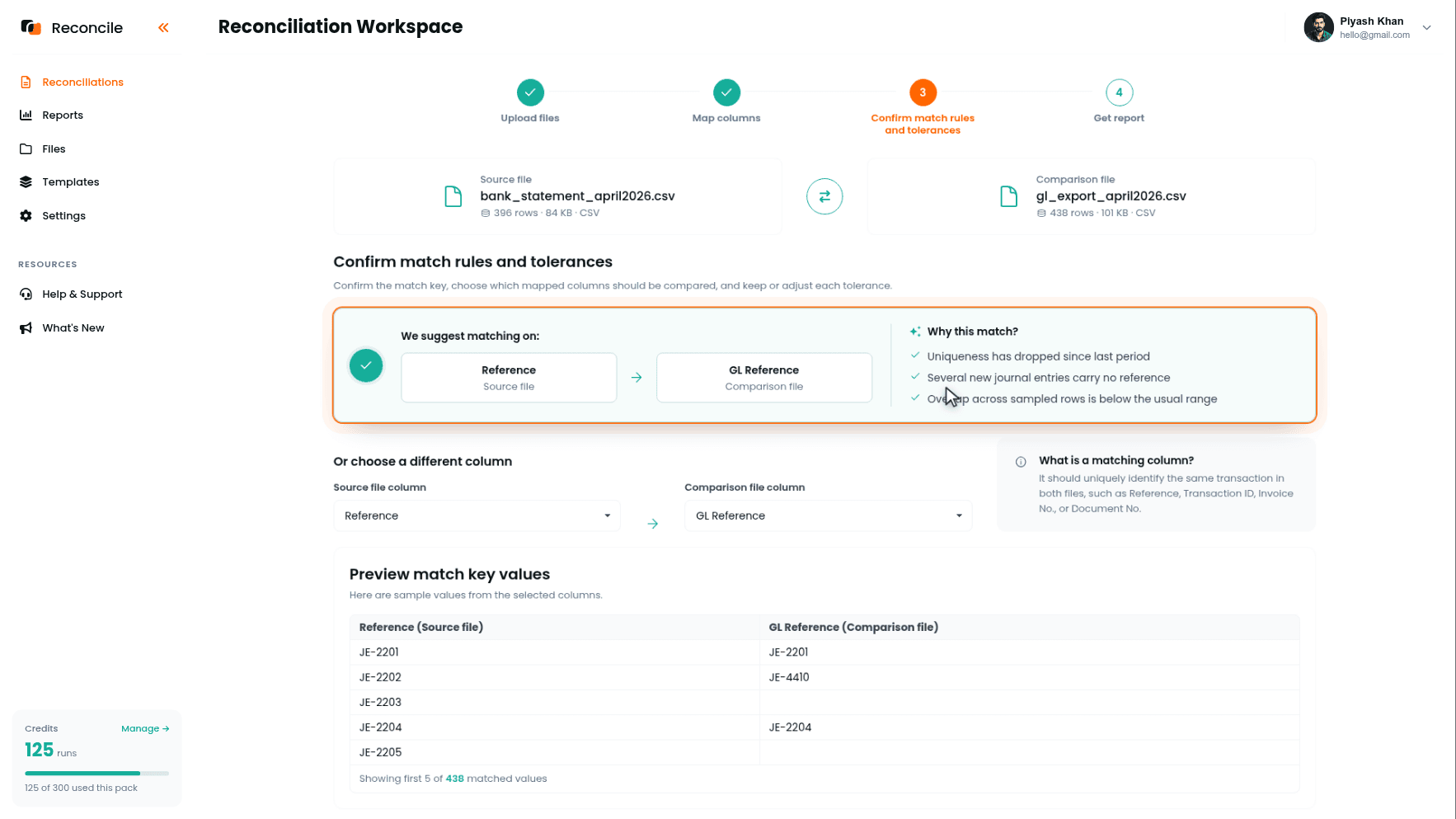
The Confirm match rules and tolerances step shows this directly. The Preview match key values table samples values from both sides and shows how many matched across the files: a matching column that covered the whole file last month and only part of it this month is visible here, before the report is even run. The Why this match? reasons on the suggestion card, uniqueness, consistent pattern, overlap across sampled rows, are recomputed from this period's data, so if Reconcile now suggests a different pair than last month, that is information: the data shifted.
In the report, the confirmation is where the Missing rows concentrate. If Missing in source or Missing in comparison spikes specifically among a transaction type that did not exist last month, the matching column needs changing for this period, not the tolerances. Re-run with a better pair.
Step 5: Separate This Month's New Exceptions from Last Month's Carryover
If unresolved items rolled forward from last period, they reappear in this period's Mismatched or Missing lists looking like new problems. Investigating them again from scratch wastes time that should go to genuinely new exceptions.
Cross-reference this period's exported report against last period's before investigating anything. A row that matches one already marked explained or still open last month carries the same explanation forward, not a fresh investigation. A row absent from last month's report is new, and gets investigated on its own terms.
Step 6: Reconsider Which Columns Are Being Compared
A comparison built for last period's transaction mix does not automatically fit this period's. A fee that used to be bundled into a single total amount and is now broken out as its own line, or a foreign exchange adjustment column that did not exist in prior files, changes what needs to be checked against what. On the Map columns step, decide whether a new column needs to be ticked in Select columns to map, or whether an existing one needs to come out of the comparison because it has become noise.
This is a separate decision from setting tolerances. Column selection decides what gets checked. Tolerance decides how much variance still counts as agreement. Settling the first without revisiting it here means the tolerance step that follows is working against the wrong set of columns.
Step 7: Reset Tolerances If the Transaction Mix Has Changed
Tolerances set for last month's mix can misclassify this month's, if the mix has shifted. A numeric tolerance that was fine when the average transaction was $50 will pass an actual discrepancy hiding among a batch of $5,000 wire transfers. A new fee type introduced after tolerances were first set will flag as a mismatch on every occurrence, adding noise that was never a real problem.
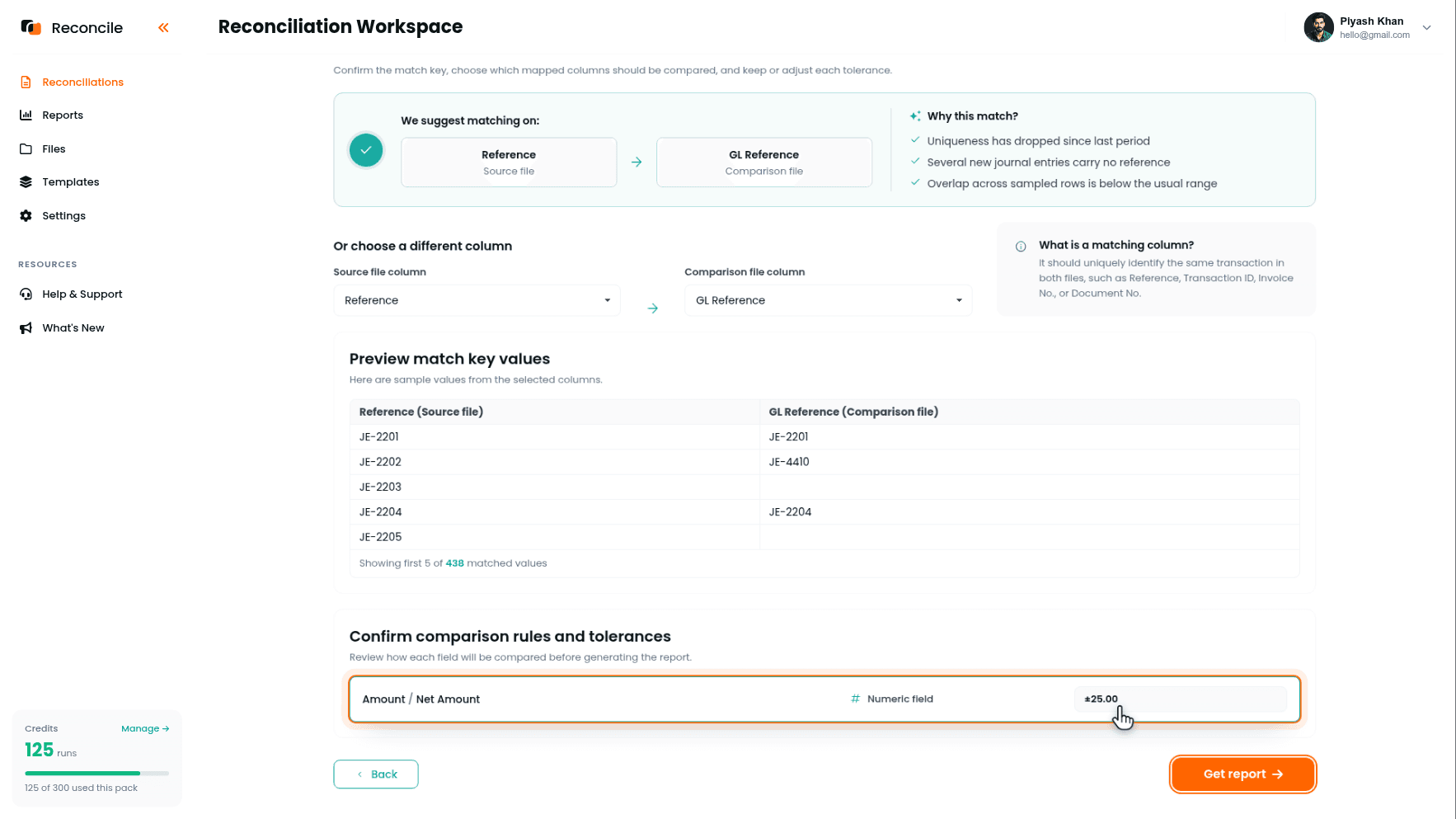
On the Confirm comparison rules and tolerances panel, check each compared column's tolerance, the date window, the numeric margin, the text rule, against what this period's data actually looks like, rather than assuming last period's settings still fit. Widen or tighten where the transaction mix warrants it.
Step 8: Get the Report Again and Confirm the Fix Closed the Gap
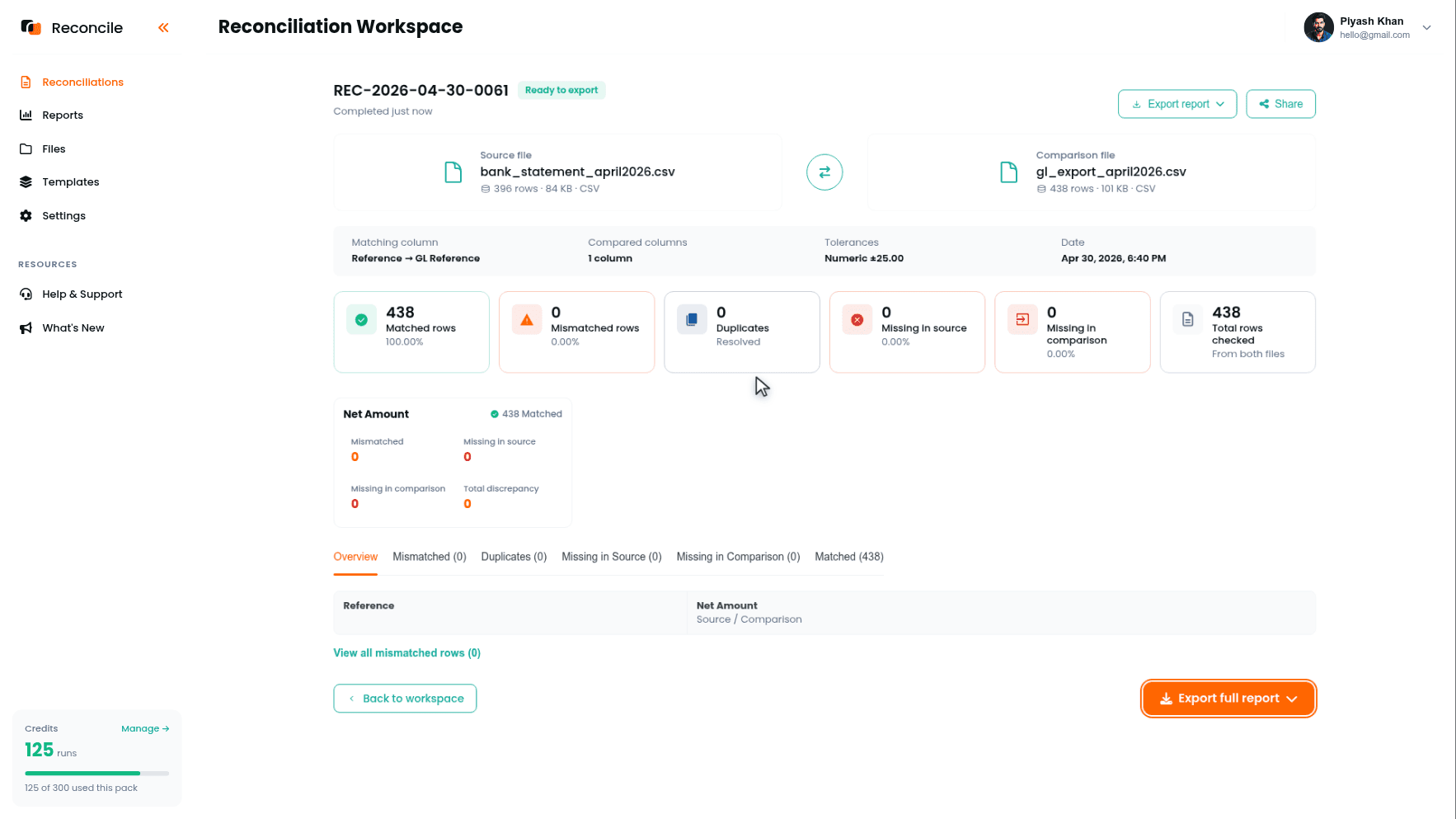
Once scope, the matching column, column selection, and tolerances reflect what actually broke, click Get report and compare the new category counts against the control total. The goal is a total-level tie, not just a shorter exception list. If the reconciliation was off by an exact figure before the fix, that figure should be fully accounted for now, either inside a Matched row that previously fell outside scope, or inside a Mismatched row with a clear, explainable cause.
If the gap has not closed, the wrong cause got fixed. Return to Step 1 and re-triage rather than loosening tolerances further. A total-level break does not get solved by widening the comparison until nothing is flagged.
Step 9: Explain What Remains and Flag What Gets Deferred
Not every open item resolves before the close deadline. A dispute still pending with the bank, a vendor who has not responded about an invoice discrepancy, a journal entry someone else needs to correct, none of those close on command. The reconciliation still needs to close.
Click Export full report, which produces a PDF summary and an Excel workbook with every row sorted into its category. Record a status against every exception row in the workbook: explained, needs correction, or still open, and for anything still open, note explicitly that it is carrying to next period rather than leaving it ambiguous. A reconciliation that closes with three flagged carryover items and a clear note on each is closed. A reconciliation left as an unexplained pile because a few rows would not resolve in time is not.
Step 10: Document the Carryover Separately
Alongside the annotated workbook, keep a short, separate note of exactly which items carried forward and why, matched to enough identifying detail, transaction reference, amount, date, that next month's reconciliation can look them up directly instead of re-deriving what still open meant weeks later.
Key takeaways
- A broken reconciliation breaks in one of three specific ways: total-level (scope), item-level (matching column or tolerance), or stalled (unclear what was already checked). Diagnose which one before doing anything else.
- A total that will not tie is almost always a scope problem, a filtered file, a mismatched date range, or the wrong file in a slot, and the row counts on the file cards expose it before any exception gets investigated.
- A reissued bank statement or processor report means a fresh run against the corrected file, never a hand-patched report. A run costs minutes; a report that no longer traces to a real file costs the close.
- The Preview match key values table and the recomputed Why this match? reasons show whether last period's matching column still fits this period's data, before the report is run.
- Carryover items from last period get cross-referenced against this period's exceptions, not re-investigated from scratch.
- A closed reconciliation is one where every row in the export carries an explanation, including carryover explicitly flagged for next period, not one where every row happened to resolve.



